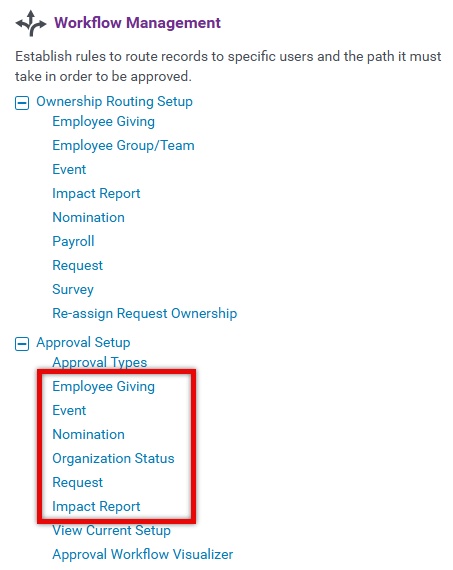
To approve requests, impact reports, organizations, events, Employee Engagement requests, and nominations, an approval workflow must be configured. An approval process must have a defined Approval type and an Approval rule.
Workflows may be associated with a single step involving one user or multiple steps involving any number of users, in any specific order. Steps can include approved or rejected, recommended, not recommended, or recorded.
The approval workflow is created using various criteria, for example:
- Request Invitation Code
- Request Region
- Country
- Proposal Type
- Request Funding Principle
- State
- Request Type
- Request Strategy
 Key Configuration Notes
- The system does not support criteria count/weighting; if the criteria conditions are met, the user is assumed to have the necessary authority.
- Settings do clone upon approval type clone.
- There is a nightly consistency check to revoke access if the assigned user is no longer appropriate given the current criteria, but if users were added manually to the process by another user, they remain unaltered. In addition, for steps with defined reviewers, new ones will not be added. Modify consistency logic to ignore user-defined reviewers)
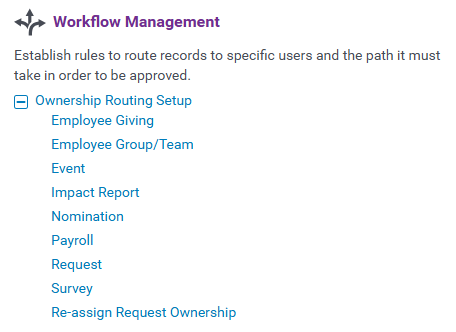
Step 1: Create a Mapping Rule and Add Criteria
Create an ownership routing rule and add criteria. - Click here for instructions.
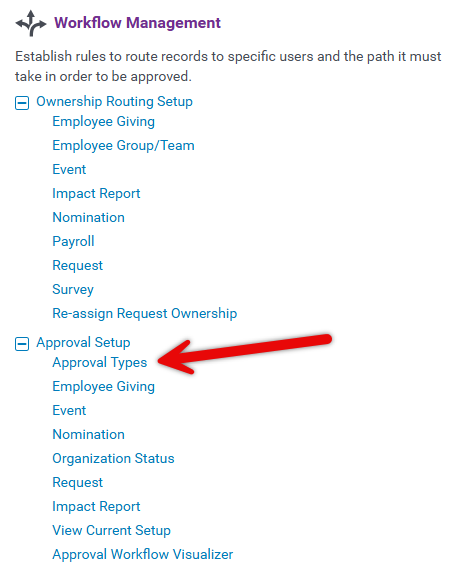
Step 2: Create an Approval Type
Configure an Approval Type(s) to include in your workflow - Click here for instructions.
Step 3: Manage Authorized Users
It’s expected that with thousands of approvers, an initial data load (by development) would be necessary to populate this information, but this interface can be used for viewing.
- The list of Authorized User(s) will have an asterisk next to users that have conditions defined, with authorized users having a configuration at the top of the list, then authorized users without a configuration, and the rest of the list at last, maintaining the alphabetical order within every grouping.
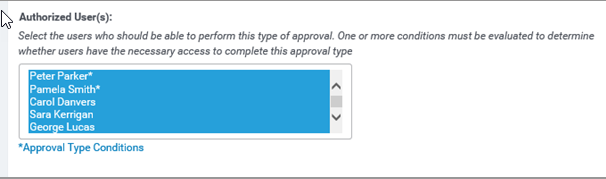
- Select *Approval Type Conditions to view and change the criteria configuration for specific users for that Approval Type.
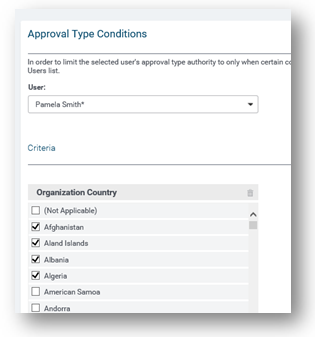
- If applicable, check the checkbox to Allow Owner to Add/Remove/Substitute a Reviewer an approver with the same approval authority (applies to dynamic approvals only).

Step 4: Create an Approval Rule
Configure an Approval Rule(s) to include in your approval process - Click here for instructions.
What else do you need help with?
Not what you're looking for? Navigate to Workflow Management Overview


