Budget security in Bonterra CyberGrants allows administrators to control which users can access budgets and schedule payments. Administrators can either assign budgets to users or assign users to budgets, depending on the preferred method of managing budget access.
The following steps will guide you through configuring budget security.
Step 1: Access budget security settings
- In the Production environment, enter the Budget tab and navigate to Budget Lines.
- Click Configure Budget Security.
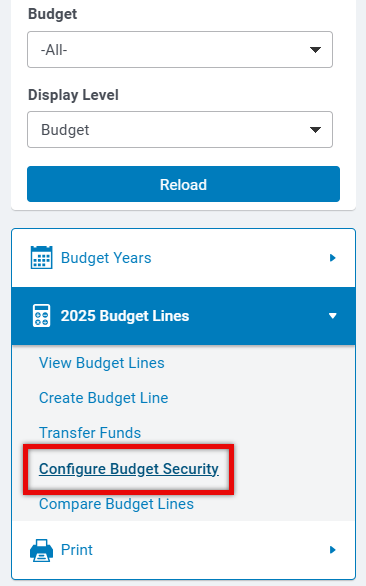
- This screen lists all budget line items for the selected year and shows which users are authorized to access them for payment creation and reporting.
Step 2: Assign budgets to users
- At the bottom of the Configure Budget Security screen, click Assign Budgets to Users.
- This is the default budget security mode.
- Select a user’s name from the User list or click Grant Budget Lines to User to open this mode.
- Highlight the budgets in the Accessible Budget Line(s) field that the selected user should be able to schedule payments from.
- Update the Editable Budget Line(s) field to identify which budgets the selected user should be able to edit.
- To select multiple lines in either field, hold down the Ctrl (Windows) or Apple/Command (Mac) key while clicking.
- Remember to hold the key before clicking if you are adding lines for a user with existing budget security.
- Click Save to apply the settings.
- Click Done to refresh the table and display the updated user access.
Step 3: Assign users to budgets
- On the Configure Budget Security screen, click Assign Users to Budgets.
- Select a budget line from the budget security table in the top half of the screen.
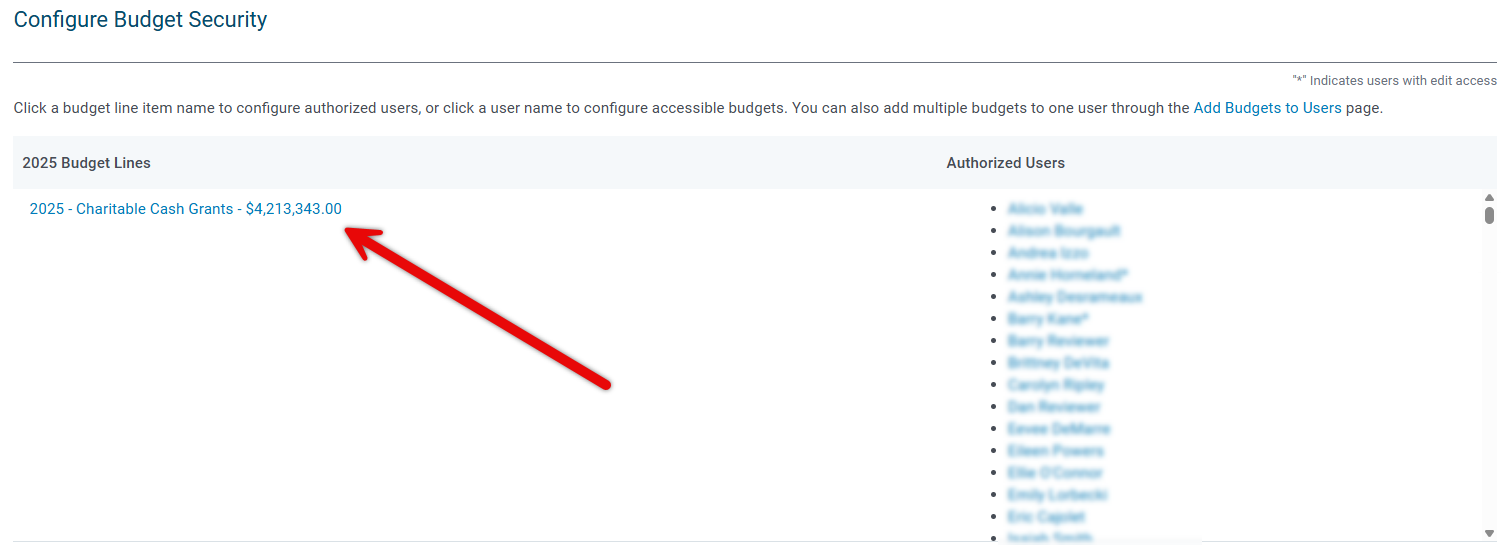
- In the Authorized User(s) list, select the users who should have access to schedule payments against the current budget.
- In the Budget Editor(s) list, select the users who should have access to edit the current budget.
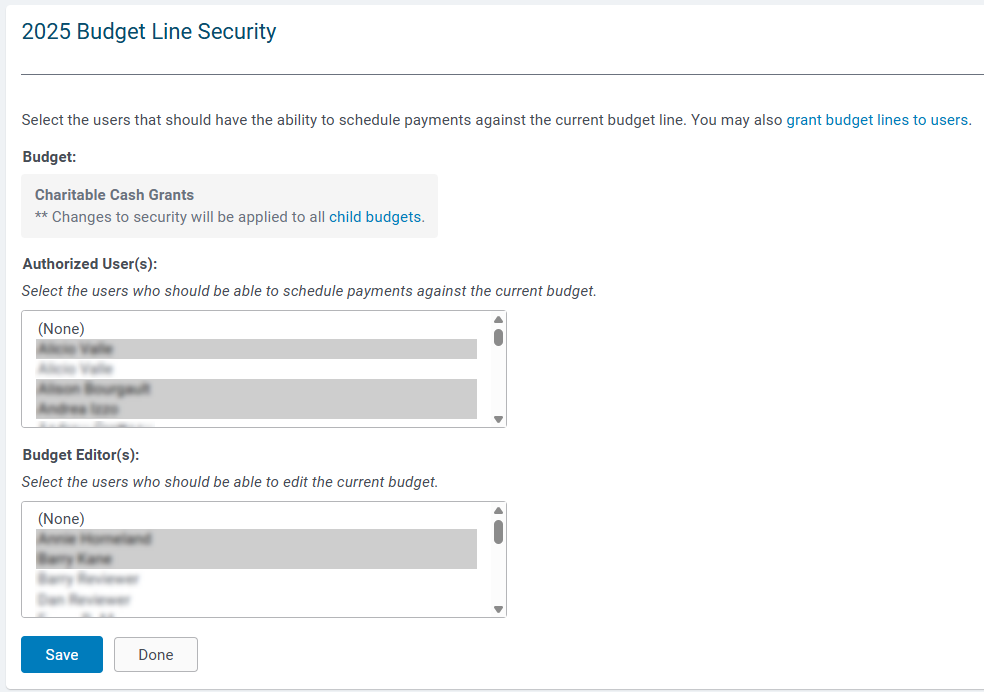
- Click Save to apply the settings.
- Click Done to refresh the table and confirm the updates.
What else do you need help with?
Not what you're looking for? Navigate to Budget Overview


