Budget mapping rules in Bonterra CyberGrants allow administrators to associate specific programs or payment types with defined budget lines. This ensures that funds are automatically allocated to the correct budget when payments are processed, improving accuracy and reducing manual adjustments.
The following steps will guide you through creating a budget mapping rule.
Step 1: Access the budget mapping area
In the Sandbox environment, navigate to View Proposal Types and select an active proposal type. From the Program Configuration, open the Rules and choose Budget Mapping.
Step 2: Name the budget mapping and select the year
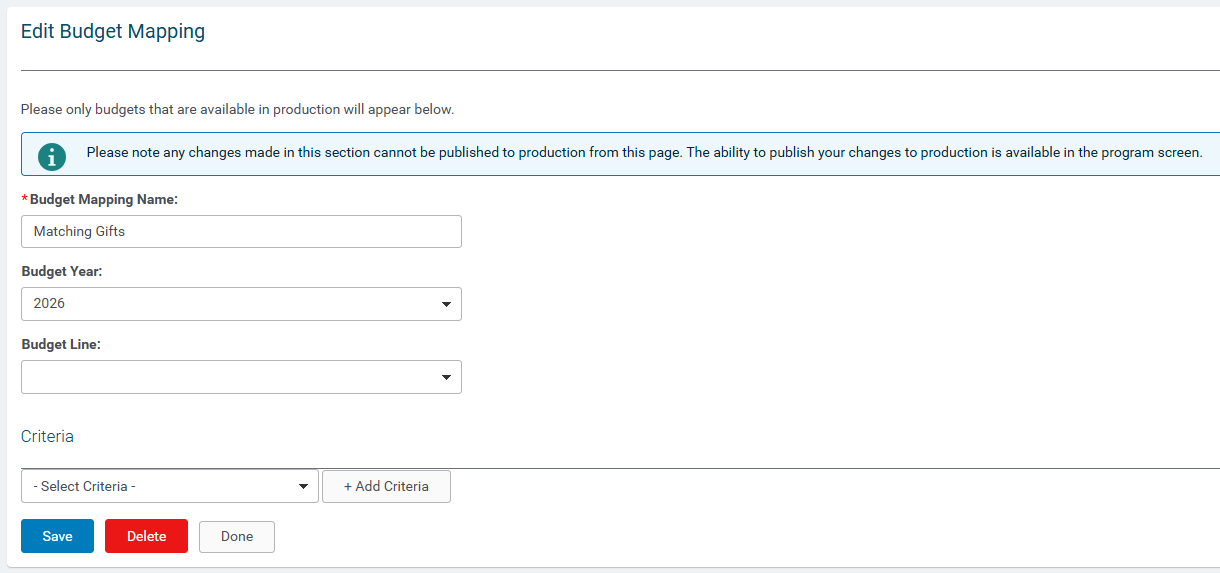
- In the mapping rule form, enter a unique, descriptive name for the budget mapping.
- Enter the applicable budget year.
Step 3: Assign the target budget line
- Select the Budget Line that payments of this type should be assigned to.
- Confirm that the rule aligns with the intended program funding structure.
Step 4: Include additional budget mapping criteria
Identify additional criteria for the budget mapping rule if applicable.
Step 5: Save the mapping rule
Click Save to finalize the rule. Once saved, payments meeting the defined criteria will automatically be mapped to the selected budget line.
What else do you need help with?
Not what you're looking for? Navigate to Budget Overview


