The Budget tab in Bonterra CyberGrants offers administrators a range of options for filtering and customizing their program's displayed budget information.
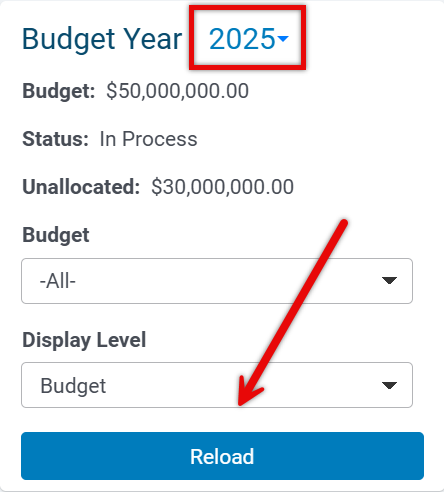
- NOTE: After making any selections in the Year, Budget, and Display Level fields, click the "Reload" button to see the information you have chosen.
The Navigation Frame also displays summary details at the top of the screen, including the Budget Year, Budget total, Status (In Process, Open, or Closed), and Unallocated funds. This provides a quick overview before drilling into specific filters.
Follow the steps below to learn more about leveraging the portal to effectively manage and analyze your program's budget data.
Step 1: Access the Budget Tab
Budgets are configured in Production. Select "Access Production” from the Sandbox environment or log into the Production environment.

Step 2: Select Budget Year
The Year list contains all available budget years. To review the budget for a particular year, click the down arrow in the Budget Year list and highlight the desired year, then click the "Reload" button to display the budget data for the selected year.
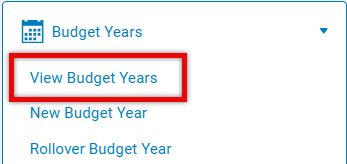
- Select 'View Budget Years' to view all the available budget years and click on a specific year to see the budget for that year.
Step 3: Filter by Budget
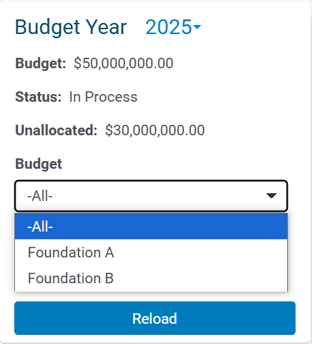
The Budget dropdown box allows the user to filter the budget lines displayed on the Budget Tab. Upon the initial load, the Budget dropdown list box contains all of the topmost parent-level budgets for the specified budget year.
- After selecting a budget, users may select from that budget’s children.
- Click the “Reload” button to display only the selected budget and its children. In this way, the user can “drill down” and display only those budgets the user wishes to examine. Once the appropriate budgets are displayed, you can click the Print icon on the left side of the screen to generate and print a snapshot of the budget view.
Step 4: Explore the Display Levels
The Display Level dropdown boxes provide a way for you to customize the level of detail shown on the Budget Tab, allowing you to view the data on a Budget, Organization, or Request level.
- Budget level - The Budget level is the default and displays only budget information.
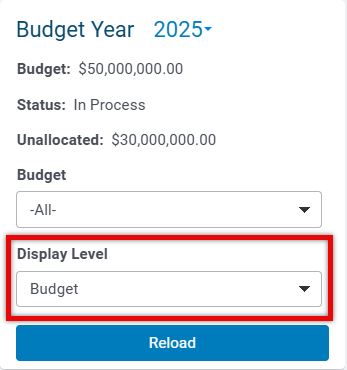
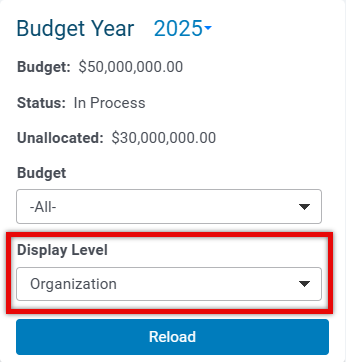
- Organization level - The Organization level displays both the budget information and an organization summary for pending and approved requests charged against those budgets.
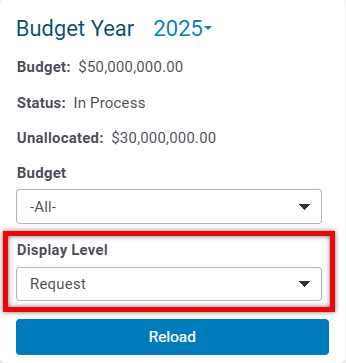
- Request level - The Request display level shows the budget, organization, and request information for payments charged against each budget. The organization name and request project title are displayed as links to the particular organization or request record.
What else do you need help with?
Not what you're looking for? Navigate to Budget Overview


