Analyses created within an Insights Explore can be easily downloaded and shared by Insights Analysts with additional stakeholders as needed. The download process is straightforward, allowing Analysts to customize the data set and select from various file formats to meet their specific requirements.
To begin the download process, proceed through the following steps.
Step 1: Access the Insights tab
Log in to the CyberGrants platform and navigate to the Insights tab.

Step 2: Choose an Explore
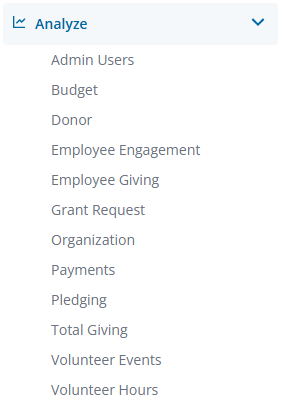
From the left-hand menu, Insights Analysts can click on Analyze to view the available Explores. Select the Explore that best aligns with your data analysis objectives.
Step 3: Create a Data Table
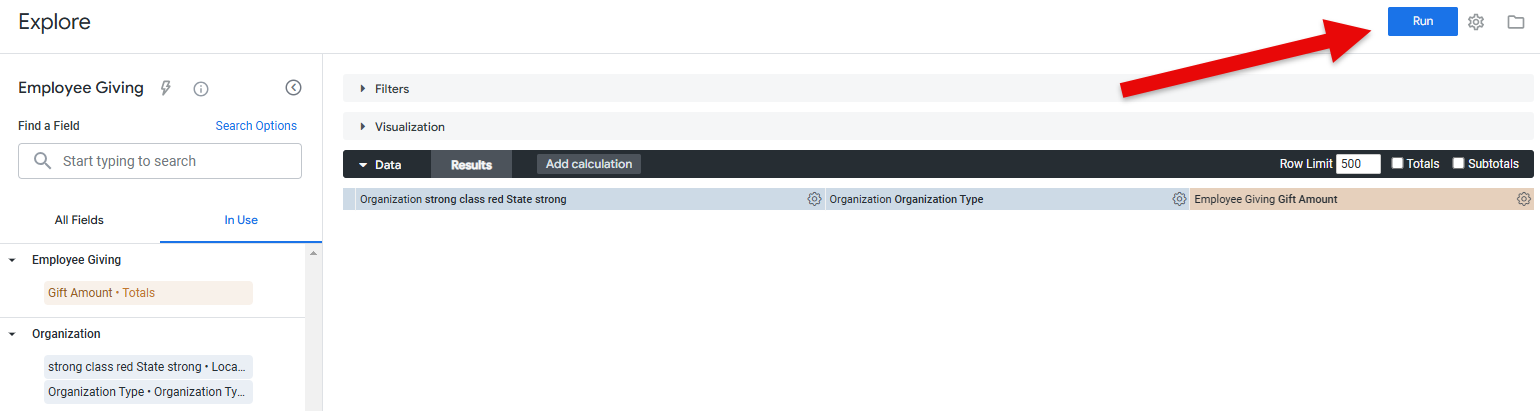
Customize your data set by adding field dimensions or measures as needed, then click "Run" to populate the values in the data table.
Step 4: Access Download Options
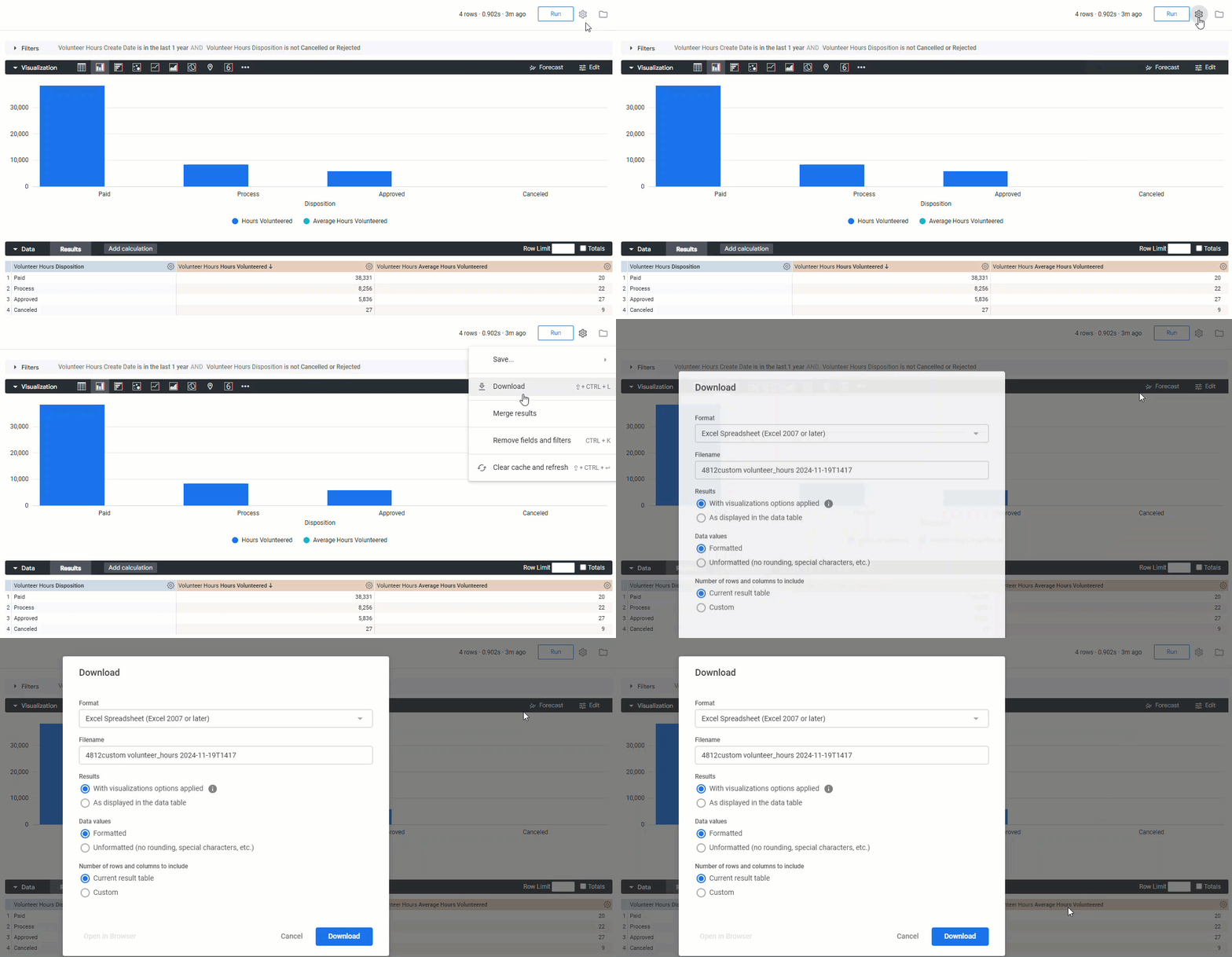
Locate the gear icon in the top right corner of the Explore and click Download to view the available options.
Step 5: Select Download Format
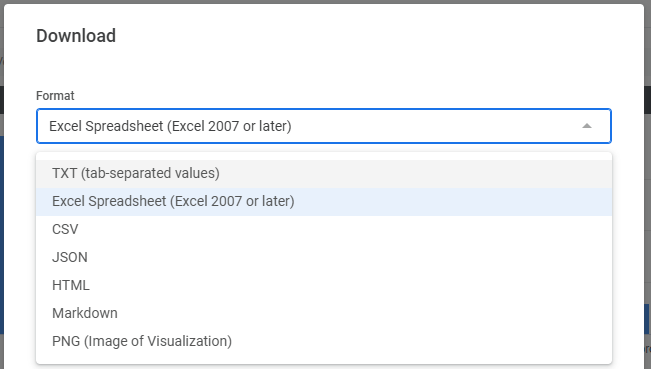
The download modal will present several format options to choose from, including:
- TXT (tab-separated values)
- Excel spreadsheet (Excel 2007 or later)
- CSV
- JSON
- HTML
- Markdown
- PNG (image of visualization)
Step 6: Customize Download Settings
Explore the advanced options to further customize the download.
- Preview certain download formats in a separate browser tab to ensure the desired output.
- Provide a custom file name for the downloaded file.
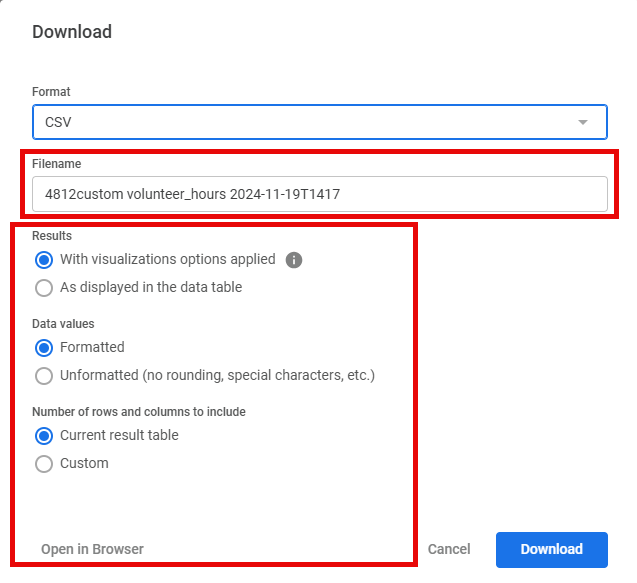
Step 7: Initiate Download
Once the download settings are configured, click the "Download" button to initiate the process.
The file will be immediately downloaded to your default 'downloads' location.
What else do you need help with?
Not what you're looking for? Return to Navigating Insights Explores Basics or access the Insights Analyze Basics Overview


