Insights Analysts can leverage Filters in Explores to refine and narrow down their data sets, enabling them to conduct more targeted and insightful analyses. The ability to select Filter Fields, choose from a variety of Filter Operators, and leverage advanced logic empowers Analysts to precisely define the parameters of their program data exploration.
Proceed as follows to effectively apply Filters within an Explore.
Step 1: Access the Insights tab
Log in to the CyberGrants platform and navigate to the Insights tab.

Step 2: Click on Analyze
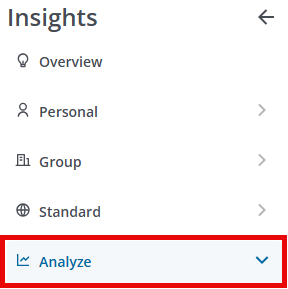
From the left-hand menu, Insights Analysts can click on Analyze to view the available Explores.
Step 3: Choose an Explore
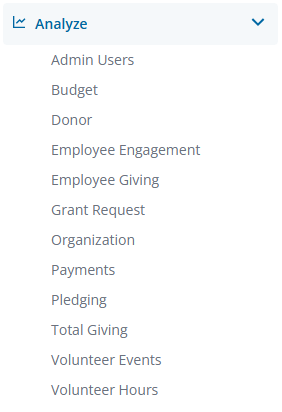
Review the available Explores and select the one that best aligns with your data analysis objectives.
Step 4: Select Data Fields
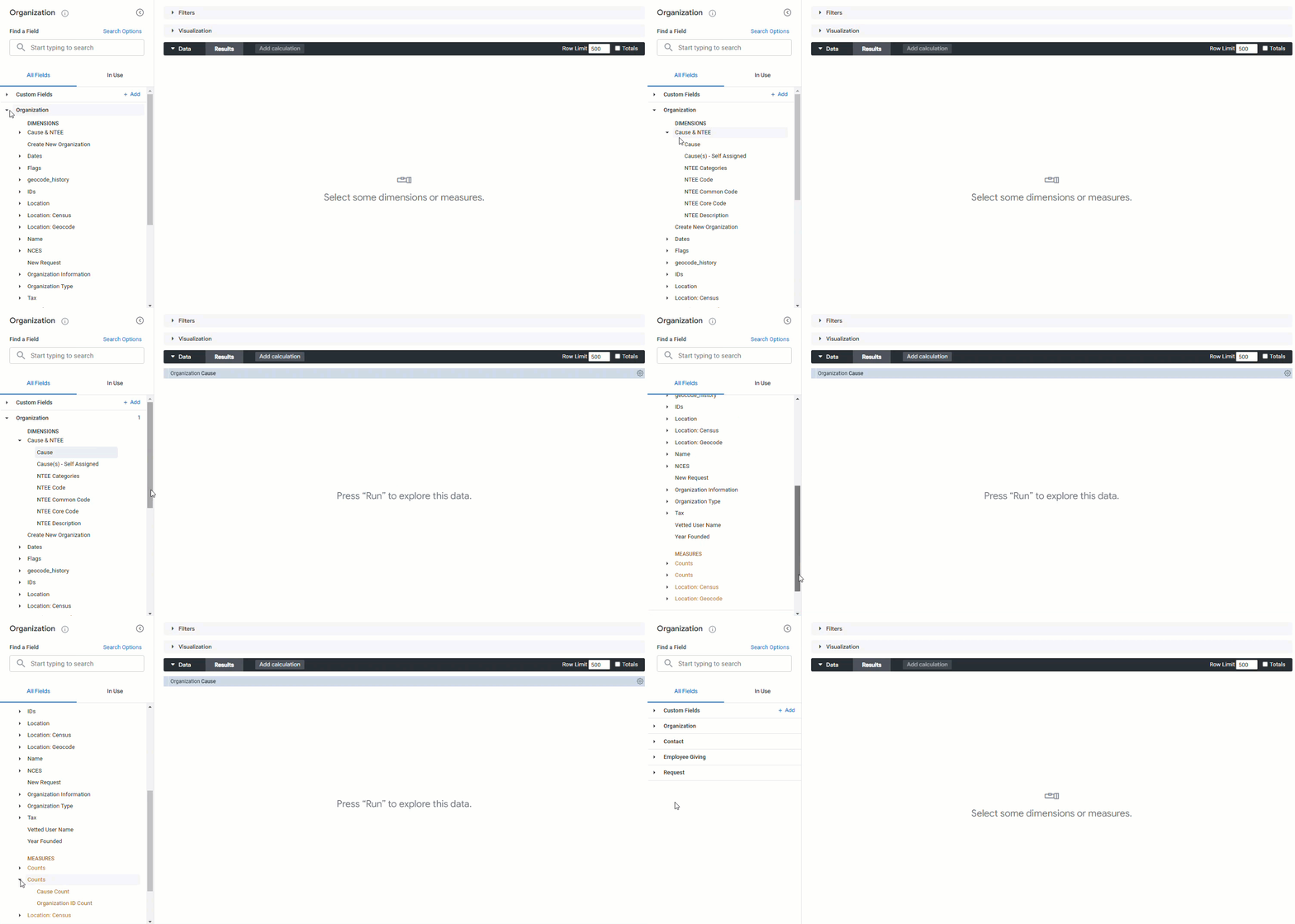
Add Field Dimensions or Measures to limit your yielded data set as needed.
Step 5: Select a Filter Field
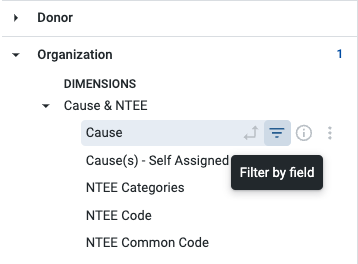
To add a field as a filter, click the inverted triage icon from the left field picker.
Step 6: Choose a Filter Operator
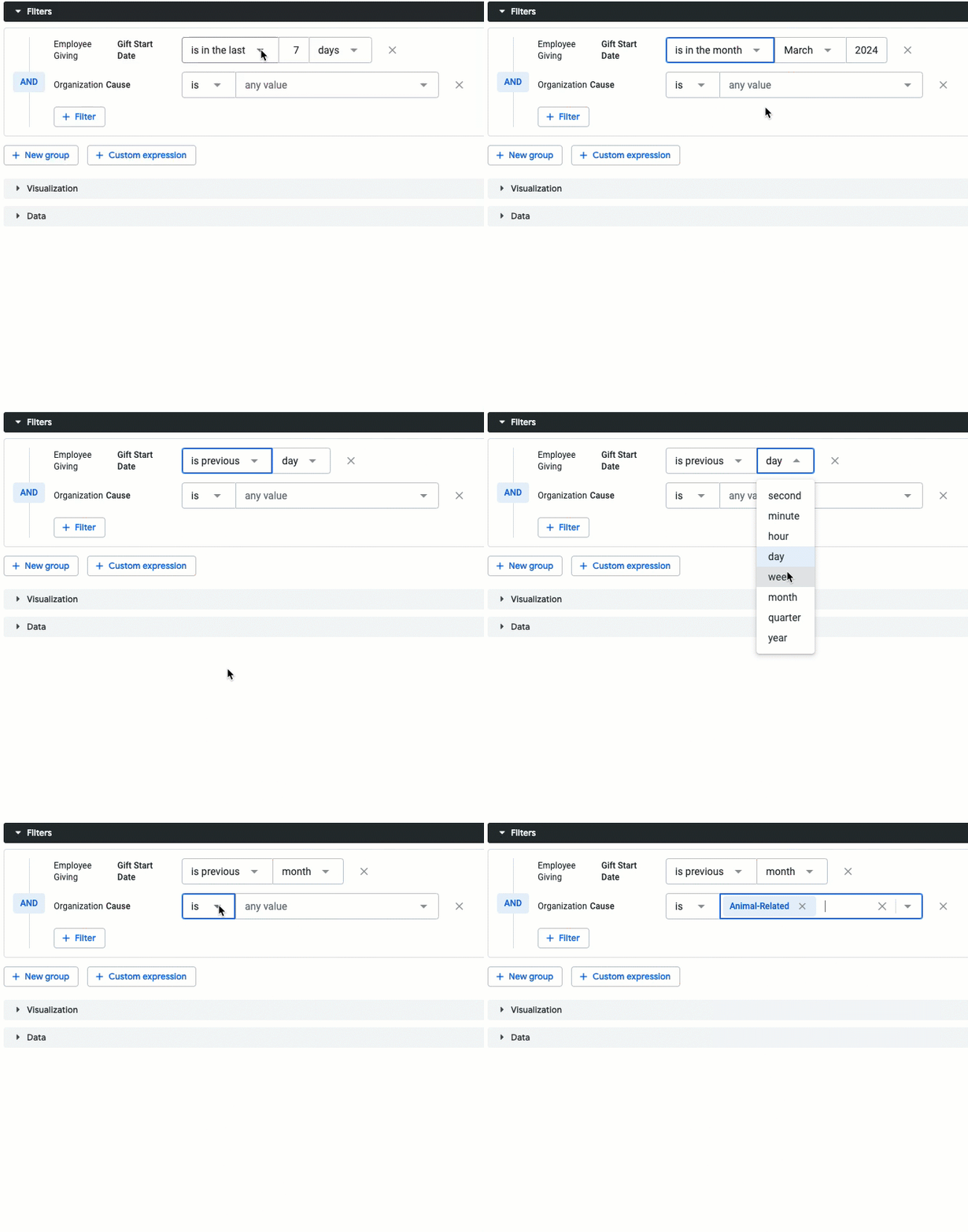
Once you have added one or more field options, you can choose from a list of operator options.
- Note: Different field types may have different filter operator options. For example, a Date field will provide options such as “Is before”, “Is in range”, etc., while a Text or Type/Text field would provide options such as “contains”, “starts with”, “is not null”, etc.
After selecting a filter operator, you can identify the specific filter limitations you would like to put in place (date range, including one or more particular statuses or programs, etc.) by either typing the name or choosing from the dropdown list of options.
Step 7: Use Advanced Filter Logic
Users can also use AND/OR logic and add custom expressions without the need to manually create filters within an Explore. When you add more than one filter, the option to specify between AND and OR filter logic and switch between them appears to the left of the filter fields. A new filter group creates a separate set of filters with the option to specify between AND and OR filter logic between groups.
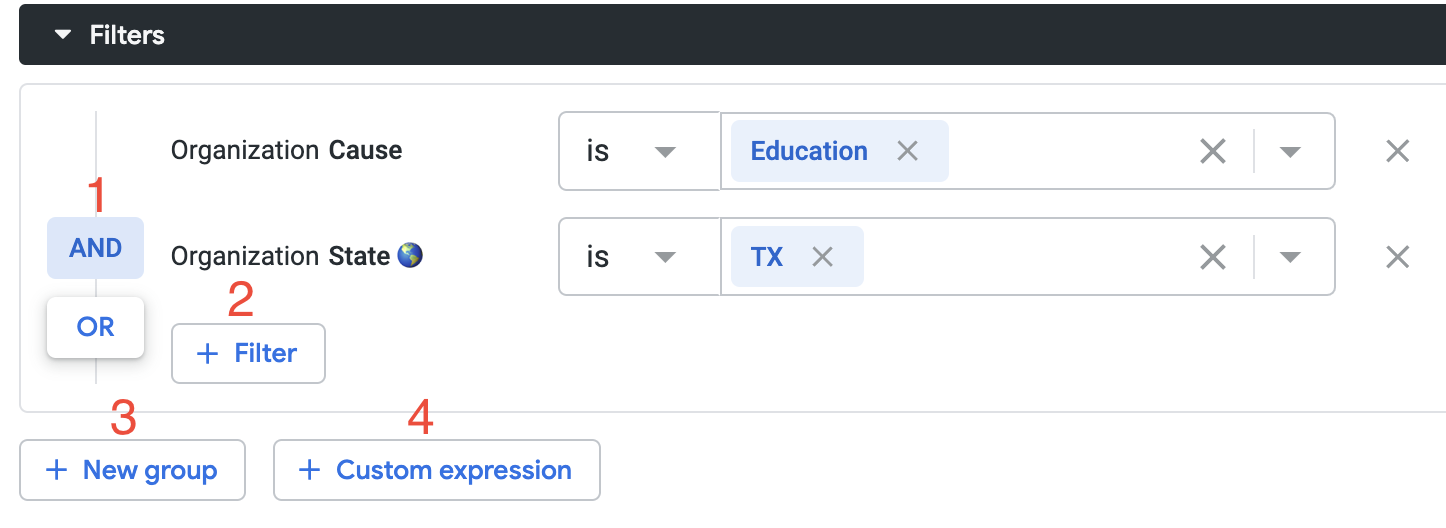
- AND/OR logic button - Select this option to switch filter logic. It will say AND or OR, depending on the logic selected.
- NOTE: Depending on the filter conditions, the AND or OR buttons may be unactionable, indicating that the logic cannot be switched.
- + Filter button - Select this option to add another filter within the same group.
- + New Group - Select this option to create a new filter group.
- + Custom expression button - Select this option to manually create a custom expression.
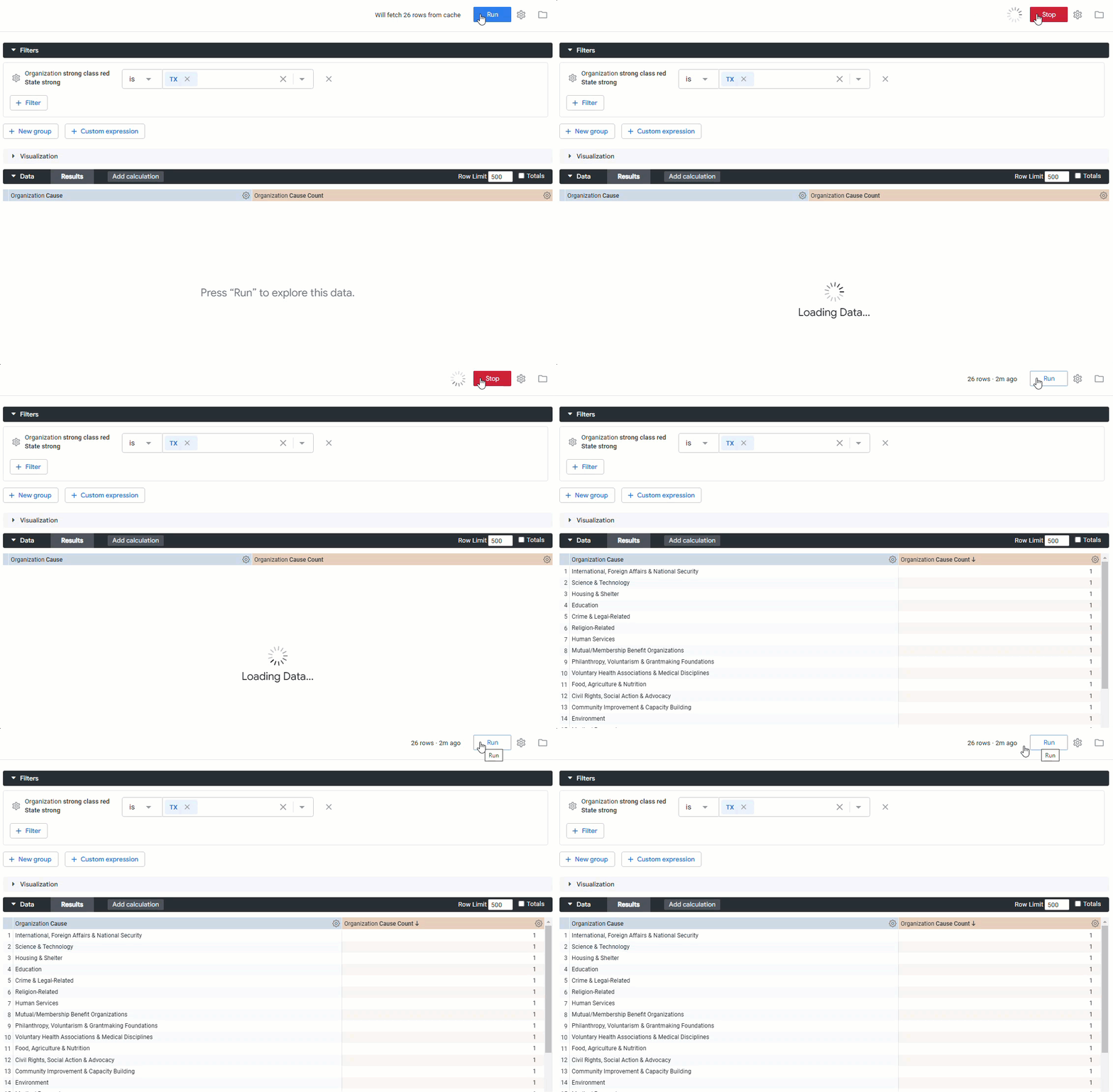
Step 8: Apply the Filters
Click Run to apply these filter limitations to your data table.
What else do you need help with?
Not what you're looking for? Return to Navigating Insights Explores Basics or access the Insights Analyze Basics Overview


