The Budget Explore empowers Insights Analysts with the ability to comprehensively review program budget data, including payment, organization, approval, and grant request information.
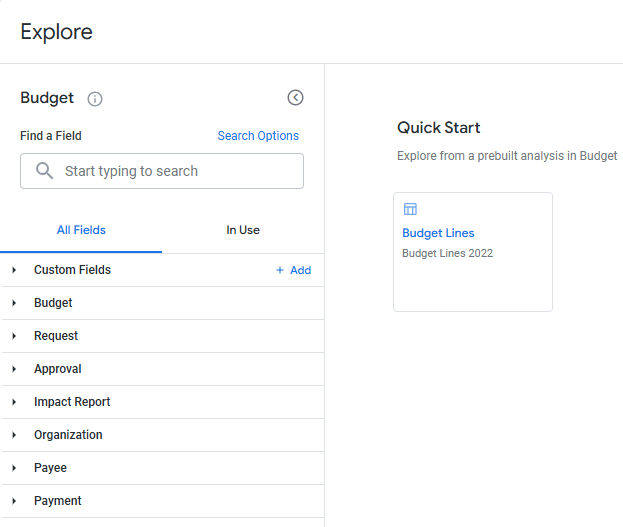
Proceed through the steps outlined below to access the Insights Budget Explore and view its available data fields.
Step 1: Access the Insights tab
Log in to the CyberGrants platform and navigate to the Insights tab.

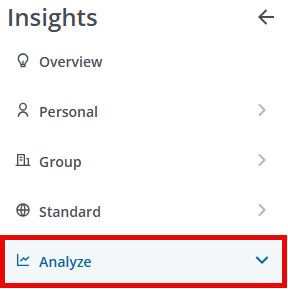
Step 2: Click on Analyze
From the left-hand menu, Insights Analysts can click on Analyze to view the available Explores.
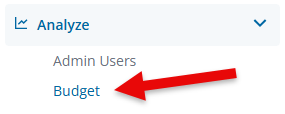
Step 3: Select the Budget Explore
Click on Budget to view the Explore.
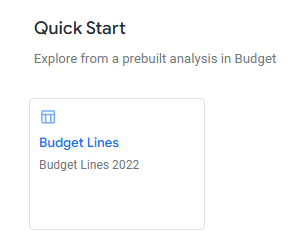
Step 4: Access the Quick Start Report
Before starting fresh by creating a new data set using the fields available within the Explore, review the Quick Start report to determine if this prebuilt analysis will pull the program data you are seeking. The Budget Explore includes a Quick Start "Budget Lines" report that enables Analysts to quickly assess allocated and unallocated budget information by fiscal year.
Step 5: View the Field Dimensions & Measures
Below are the fields available within the Budget Explore along with their dimensions and measures.
Field Name
|
Dimensions
|
Measures
|
| Budget |
- Amounts
- Budget Group
- Budget Level
- Budget Name
- Budget Year
- Dates
- Order By
|
- Budget Calculations
- Counts
- Totals
|
| Request |
- strong class red Total Program Budget strong
- strong class red Program Impact Area strong Funding Principle
- strong class red Program Title strong
- Amounts
- Dates
- Disposition
- Flags
- GIK Request Workflow Status
- Grant Year
- Grantseeker
- IDs
- Invitation
- Number of Payments
- Reference Code
- Request Owner
- Request Submitted By
- Request Type
- Strategy
- Tags
|
|
| Approval |
- Approval Comments
- Approval Order
- Approval Result
- Approval Rule
- Approval Type
- Approver
- Dates
|
- Approval Calculations
- Averages
- Counts
|
| Impact Report |
- Comments
- Dates
- Disposition
- Flags
- Grantseeker Editor
- IDs
- Impact Report ID
- Impact Report Owner
- Impact Report Type
- Organization Review Comments
- Program
- Reference Code
- Submit User
|
|
| Organization |
- Cause & NTEE
- Create New Organization
- Dates
- Flags
- geocode_history
- IDs
- Location
- Location: Census
- Location: Geocode
- Name
- NCES
- New Request
- Organization Information
- Organization Type
- Tax
- Vetted User Name
- Year Founded
|
- Counts
- Counts
- Location: Census
- Location: Geocode
|
| Payee |
- Contact Information
- Create User ID
- Create User Name
- Flags
- Location
- Name Line 1
- Name Line 2
- Payee EFT Bank
- Payee EFT Bank Account Number
- Payee EFT Routing Code
- Payee ID
- Payment Contact Email Address
- Payment Contact Name
- Payment Contact Phone Number
| N/A |
| Payment |
- Amounts
- Check Number
- Dates
- IDs
- Payment
- Payment (Years)
- Budget Year
- Quantity
- Reference Code
- Rejection
|
|
What else do you need help with?
Not what you're looking for? Navigate to Understanding Standard Insights Explores. To learn more about using an Explore to analyze your program's data, please refer to Navigating Insights Explores Basics or return to Insights Analyze Basics Overview.


