CyberGrants enables internal users to manage their profile and control their personal information, customize their preferences, and access additional display settings.
- NOTE: Only the Administrator can change the security level and impose password requirements to provide a more secure user ID.
Review the information below to learn more about managing internal user profile settings.
Step 1: Access User Profile
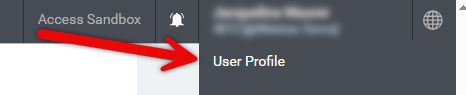
Enter CyberGrants and navigate to your user profile settings by clicking on "your name" located on the top right-hand corner. Then, access the "User Profile."
Step 2: Adjust Profile Settings
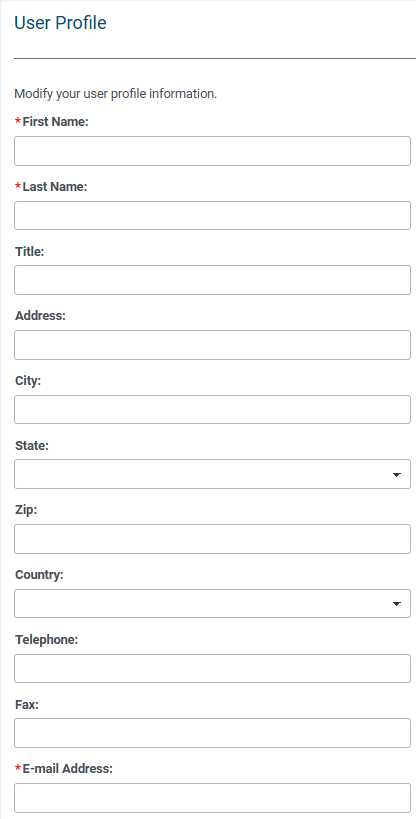
Modify your personal information, such as name, address, and telephone number. Fields marked with an asterisk (*) are required.
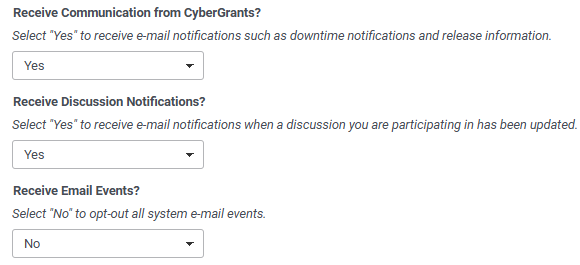
- You can also customize your "Communication Preferences" from CyberGrants.
When prepared, ensure that you save any profile changes.
Step 3: Change Password
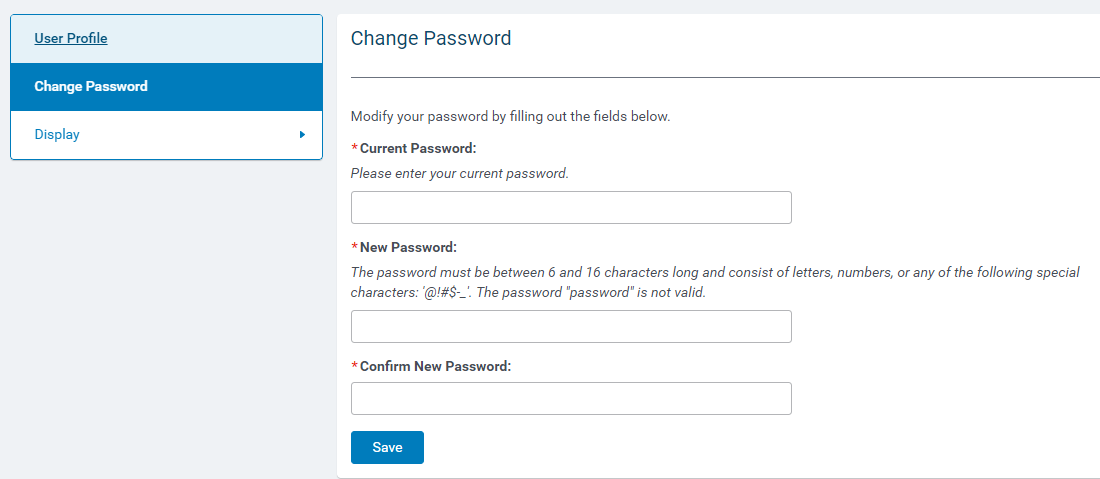
Update your CyberGrants password through the "Change Password" section.
Step 4: Access Display Settings
The "Display" features allow a user to create a custom stylesheet for the “look” of the CyberGrants internal application.
- NOTE: These features must be configured in the Sandbox environment.
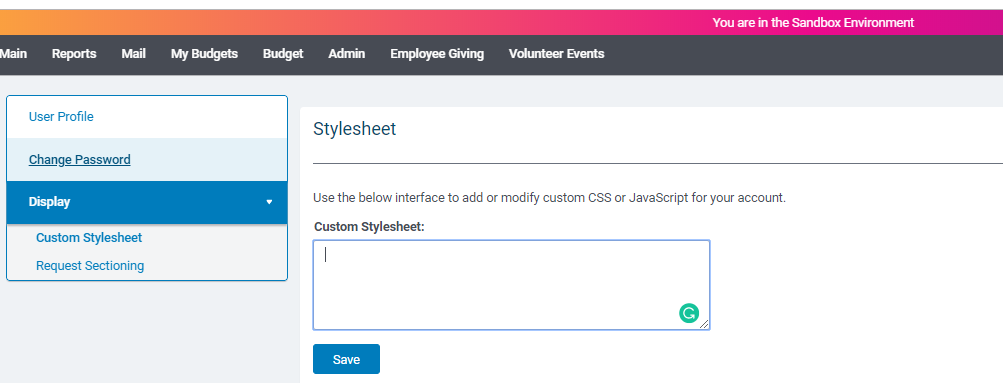
Users will only be allowed to manage "Request Sectioning" if granted permission by the administrator. The "Allow Users to Change Views?" setting controls this permission.

What else do you need help with?
Not what you're looking for? Navigate to Understanding Internal Users - Approvers and Administrators


