Administrators have the ability to manage their CyberGrants licenses by assigning either full or limited access to their account's internal users.
- This feature provides administrators the flexibility to tailor their account's permissions and ensure users have the appropriate system access.
Review the instructions below to learn more about setting the CyberGrants License Type for internal users.
Step 1: Access User Management
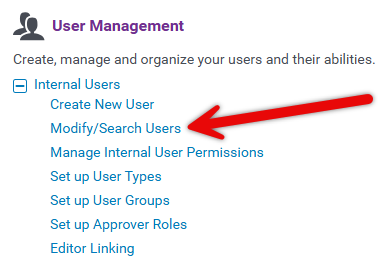
Enter CyberGrants and navigate to the Admin tab to access the User Management section.
Step 2: Locate the User Profile
In the Internal Users section, click the "Modify/Search Users" hyperlink to view existing users.
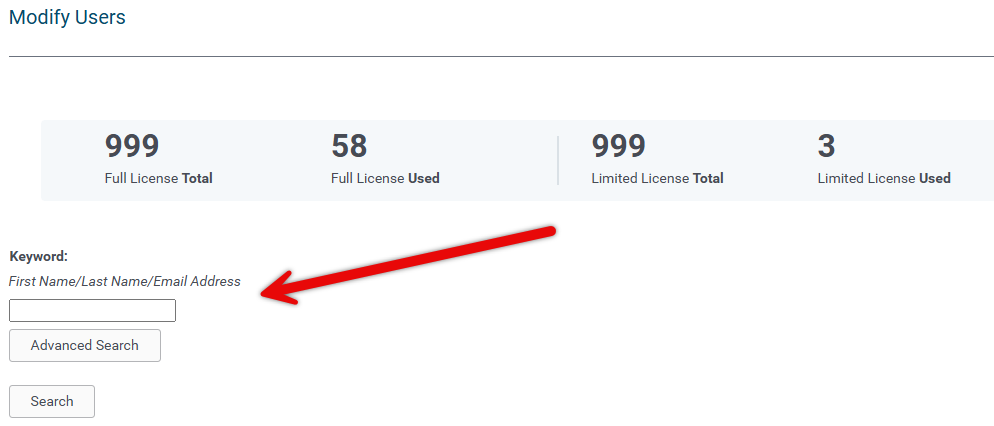
Utilize the Keyword search field to locate the user by first name, last name, or email address.
Step 3: Modify the User's License Type
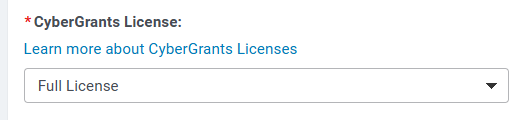
Once the user's profile is displayed, select the appropriate CyberGrants License option from the dropdown menu:
- Full License
- Limited License
Click the "Learn more about CyberGrants Licenses" hyperlink for detailed information on the differences between license options.
Step 4: Save the User's Updated Settings
When prepared, click the "Save" button to apply the changes.

What else do you need help with?
Not what you're looking for? Navigate to Understanding Internal Users - Approvers and Administrators


