Administrators are able to configure automatic timeouts for CyberGrants users, setting a specific time limit after which the system will automatically log out those users.
By configuring these automatic timeouts, administrators can enhance the overall security and productivity of their CyberGrants account.
- NOTE: The timeout value cannot be set to 0 minutes and cannot exceed 1440 minutes (24 hours) for security reasons.
Review the information below to understand how to configure this tool for your internal users, donors, and grantseekers/non-profit organizations.
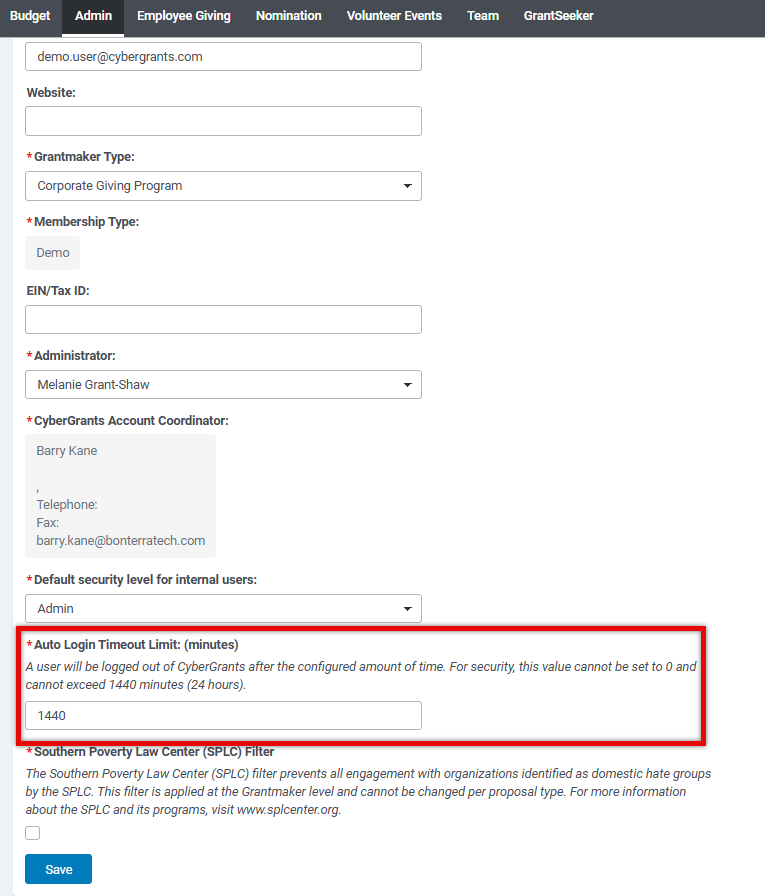
Configure Timeout for Internal Users
- While in the Sandbox environment, access the Admin tab, navigate to General Settings and, then, Primary Info.
- On the Grantmaker Profile page, set the automatic timeout value for internal users.
- Ensure that you click "Save" after completing the update.
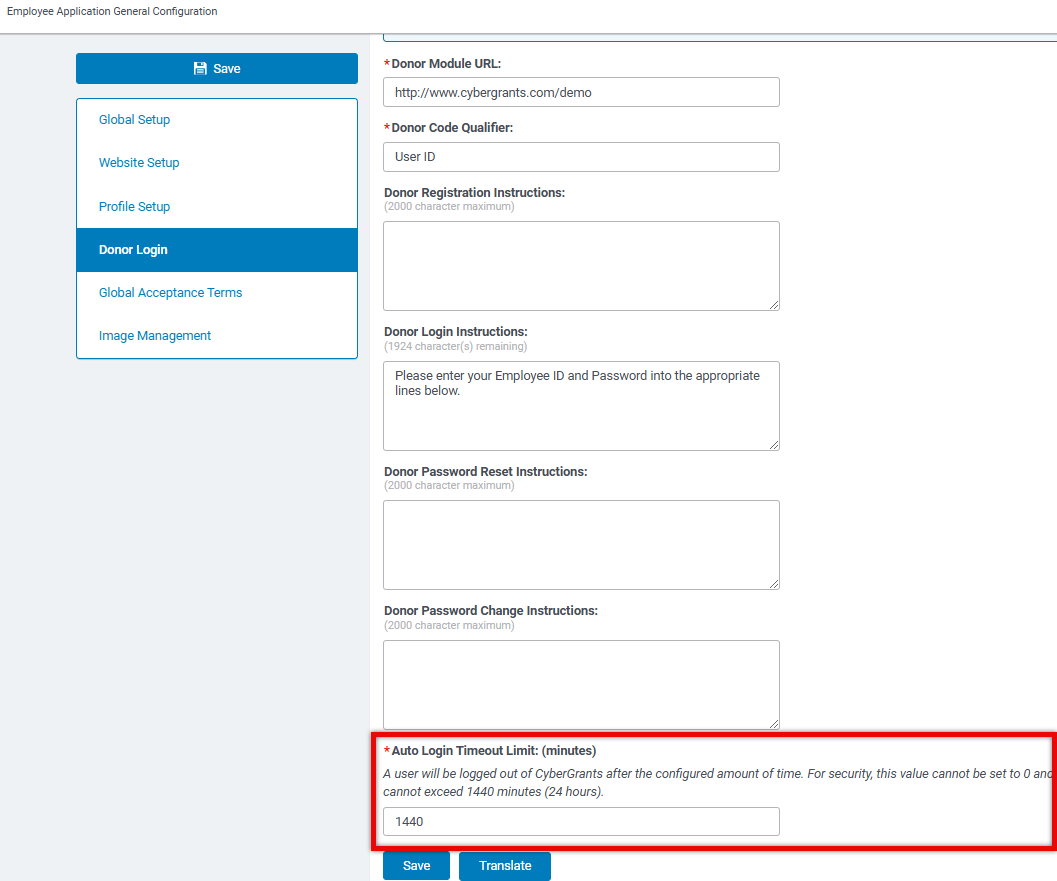
Configure Timeout for Donors
- While in the Sandbox environment, access the Admin tab, navigate to Employee Application Configuration and, then, General Configuration.
- Select Donor Login from the menu and set the automatic timeout for donor users.
- Ensure that you click "Save" after completing the update.
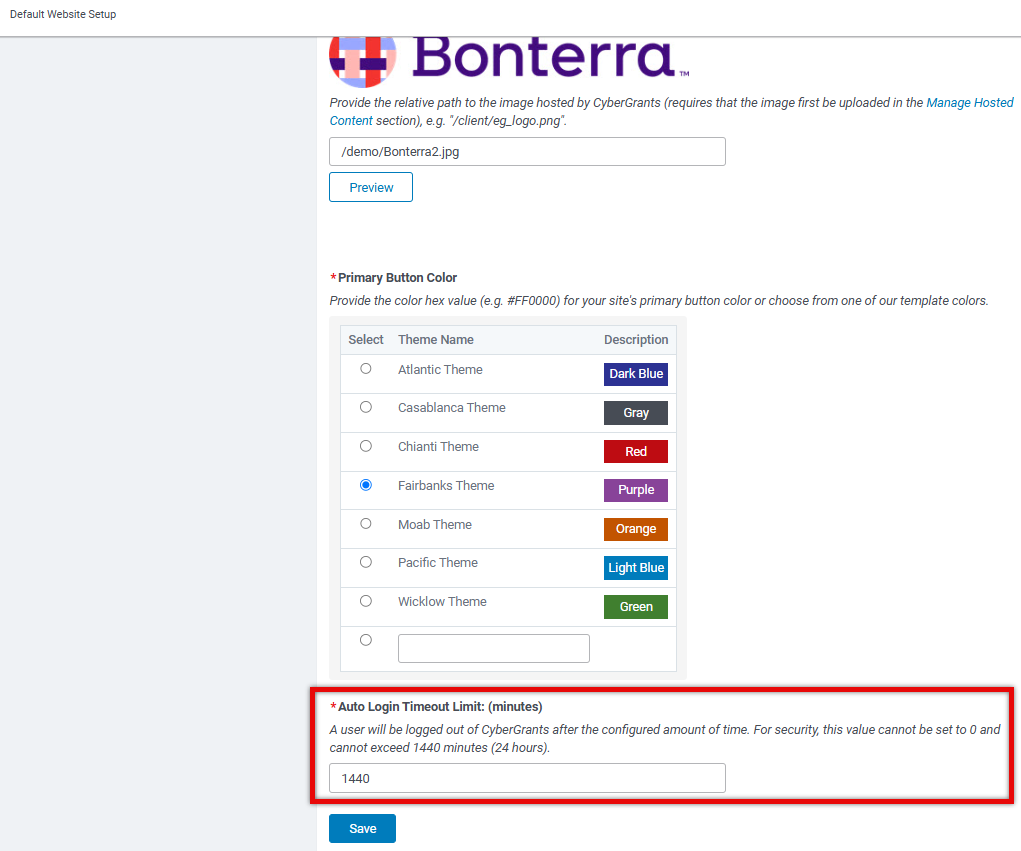
Configure Timeout for Grantseekers/Non-Profit Organizations
- While in the Sandbox environment, access the Admin tab, navigate to Application Configuration and, then, select Default Website Setup.
- Proceed with configuring the automatic timeout for grantseekers and non-profit organization users.
- Ensure that you click "Save" after completing the update.
What else do you need help with?
Not what you're looking for? Navigate to Understanding Internal Users - Approvers and Administrators


