Administrators have the ability to tailor the internal user experience by granting or restricting access to specific tabs within CyberGrants.
- This feature ensures that your internal users can efficiently navigate and access the information and functionalities most relevant to their roles and responsibilities.
Follow the steps below to learn about updating tab access for your account's internal users.
Step 1: Access "Modify/Search Users"
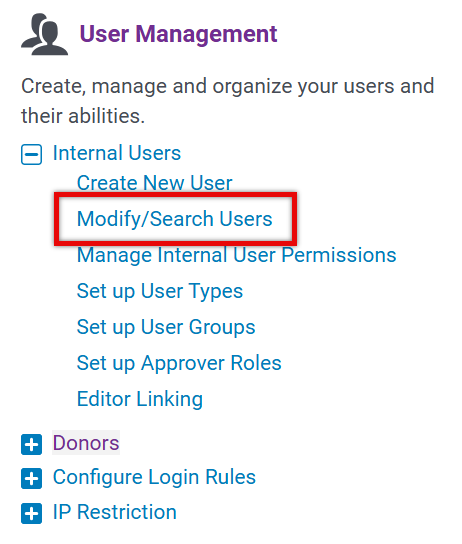
Access the Admin tab and navigate to the User Management section. Under Internal Users, select the "Modify/Search Users" option to search for the internal user whose tab access you wish to modify.
Step 2: Perform a Keyword Search
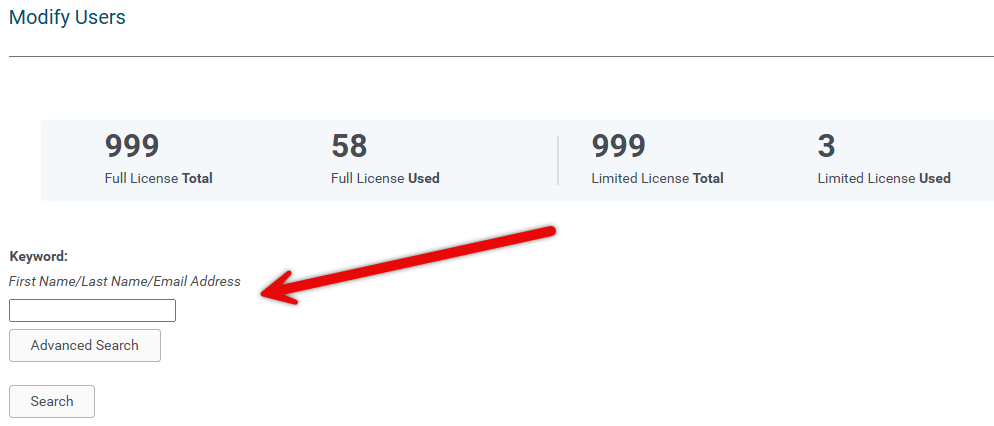
To locate a user's account, you can search using keywords that encompass first name, last name, and email.
Step 3: Perform an Advanced Search
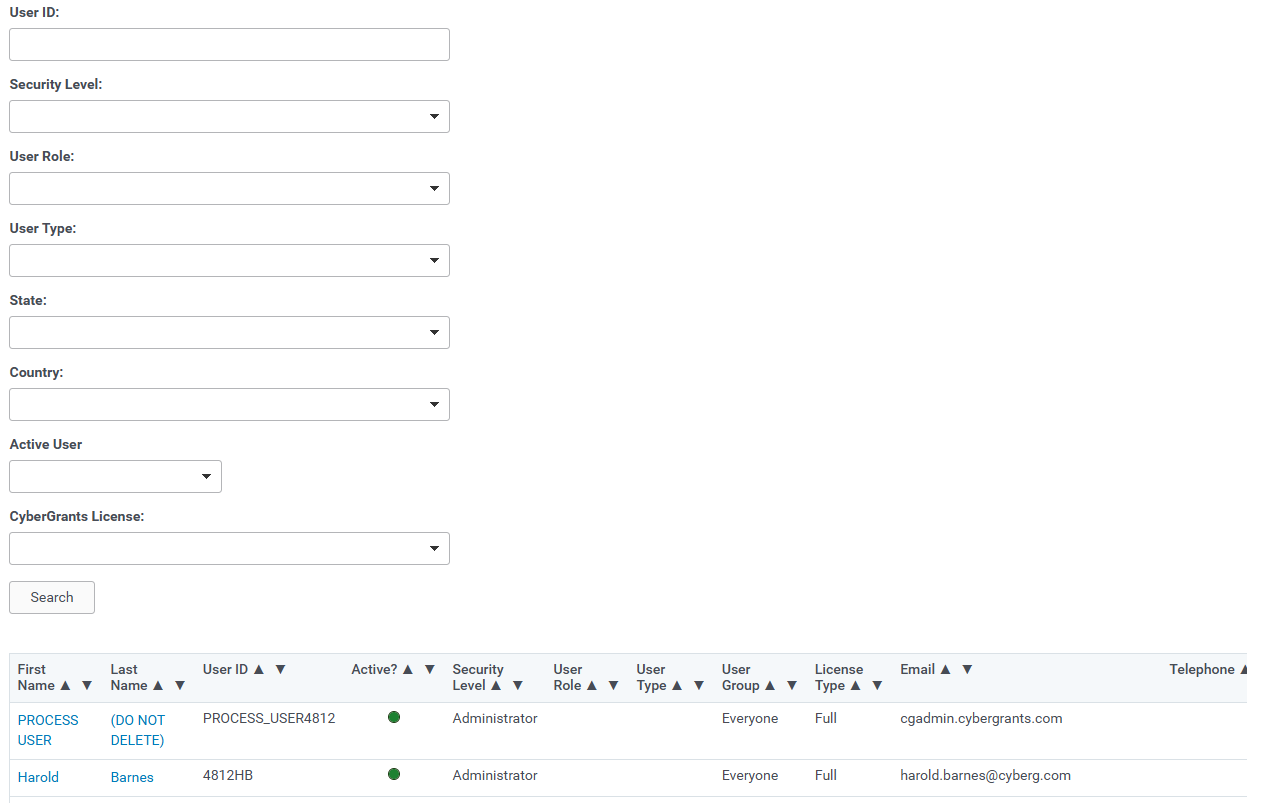
You can choose to refine your search criteria utilizing the "Advanced Search" options available:
- User ID
- Security Level
- User Role
- User Type
- State
- Country
- Active User
- CyberGrants License
The search results display the First Name, Last Name, User ID, Active Status, Security Level, User Role, User Type, User Group, Email, and Telephone.
Step 4: Adjust Module Access
Click on the user's First Name or Last Name to access their profile.
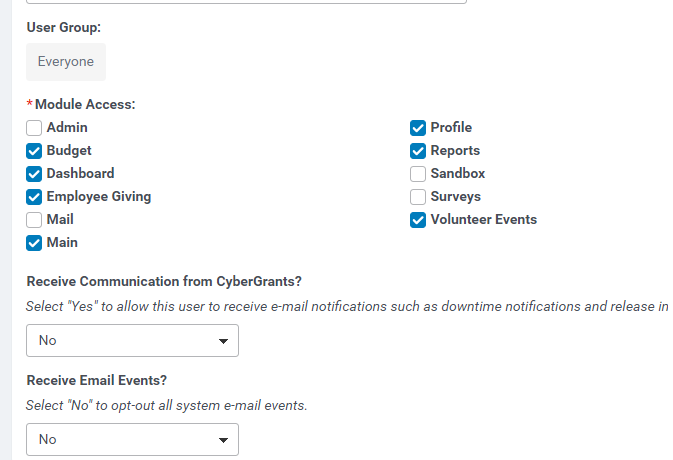
Scroll down to the Module Access section and select or deselect the checkboxes to grant or restrict access to the desired tabs.
Step 5: Save the Changes
Save the modifications made to the user's tab access.

What else do you need help with?
Not what you're looking for? Navigate to Understanding Internal Users - Approvers and Administrators


