Administrators can search for internal users based on their approved status and CyberGrants license type, enabling them to effectively manage their account's internal user base.
To search by Active User and CyberGrants License Type, proceed through the following steps.
Step 1: Access User Management
Navigate to the Admin tab in CyberGrants and locate the User Management section.
Step 2: Modify/Search Users
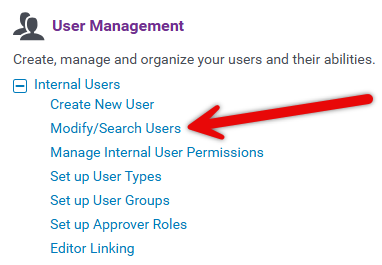
In the Internal Users section, click the "Modify/Search Users" hyperlink to access the Modify Users page.
Step 3: Utilize Advanced Search
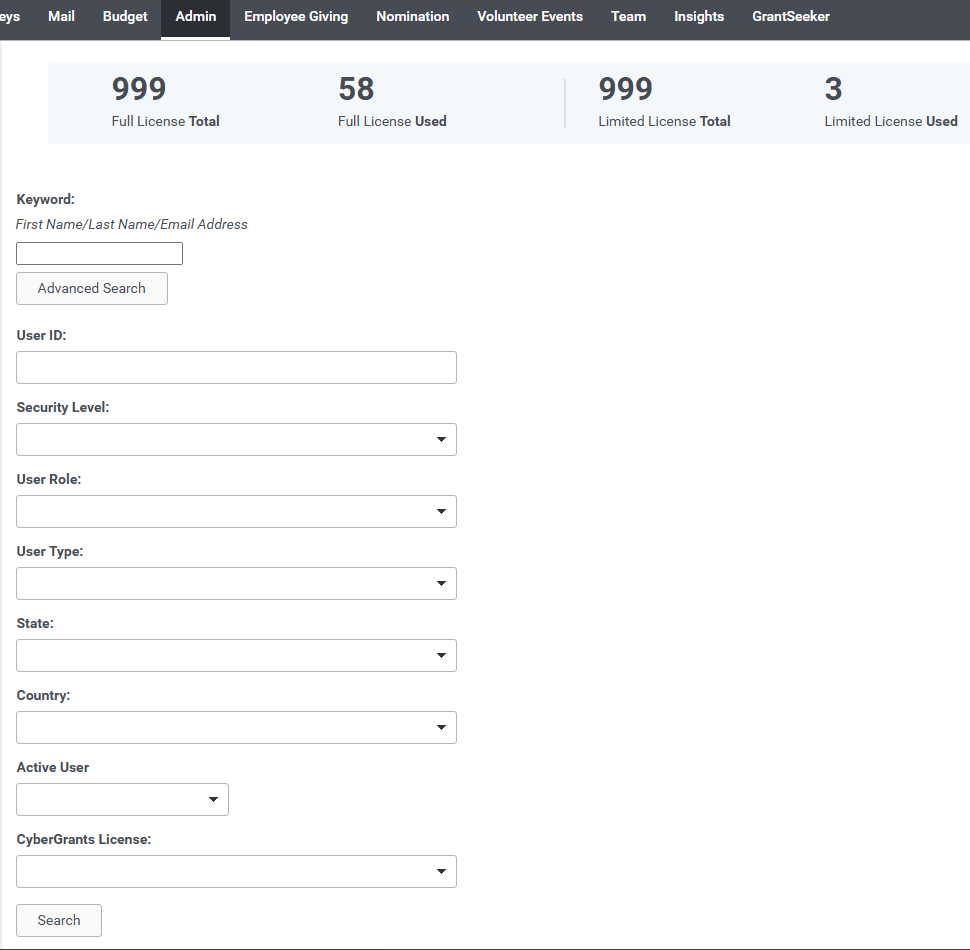
Click the "Advanced Search" button to reveal additional search options.
Step 4: Filter by Active User
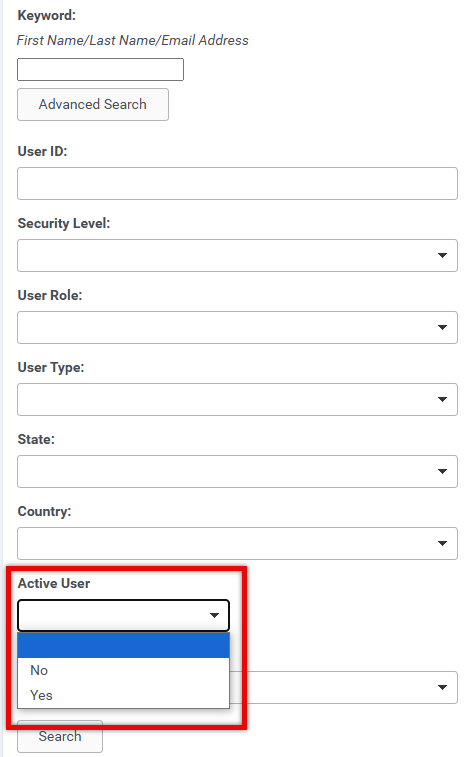
In the "Active User" dropdown menu, select the appropriate option to filter users based on their active status.
Step 5: Filter by CyberGrants License Type
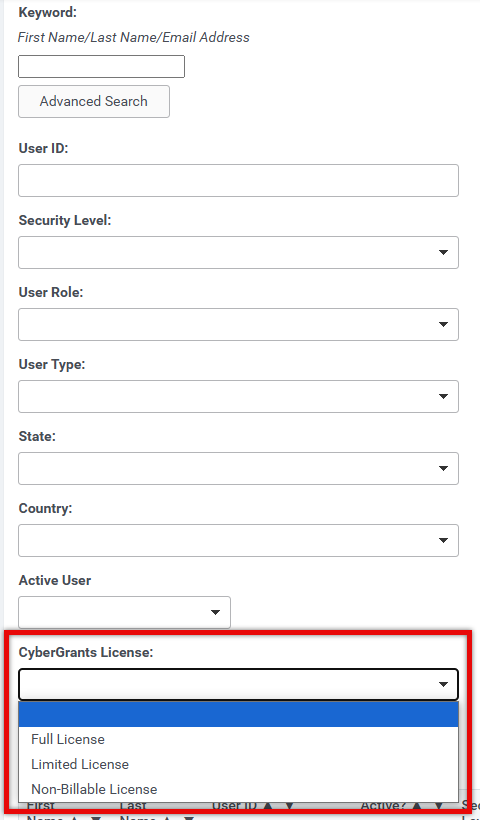
In the "CyberGrants License" dropdown menu, select the desired license type to refine your search.
Step 6: Execute the Search
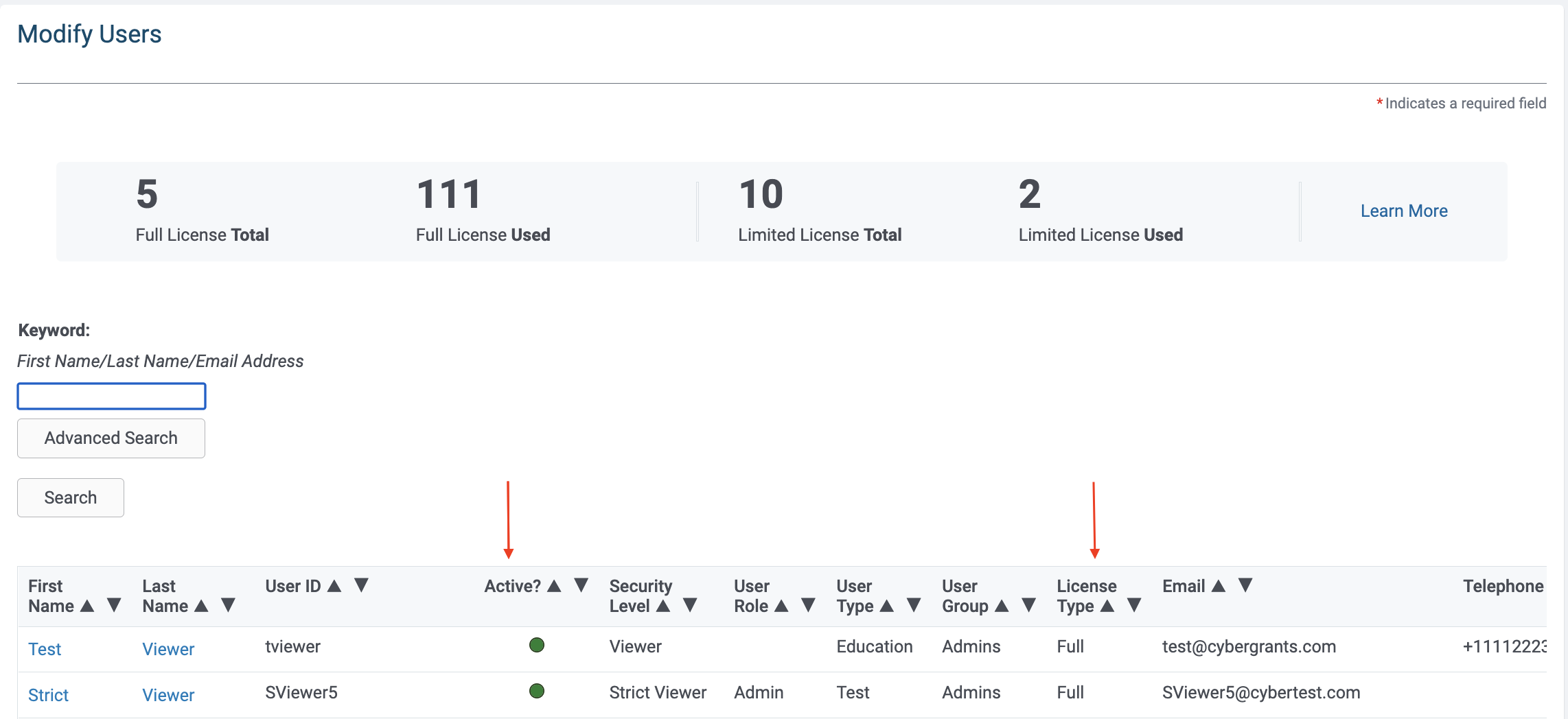
Click the "Search" button to view the results, which will now display the Active flag and CyberGrants License Type as default columns on the Modify User page.
Step 7: Analyze the Summary
Administrators will now see a summary of the Full and Limited licenses allocated to the account, as well as the count of Active Users in each category.

What else do you need help with?
Not what you're looking for? Navigate to Understanding Internal Users - Approvers and Administrators


