Grantmakers will often use the same field in many proposal types, but need to call the field something different in each proposal. Instead of creating multiple fields, users can rename a field in the Proposal Type.
Learn how to mask a field name in a proposal type to customize the field's appearance by following the steps below.
Step 1: Locate the Proposal Type
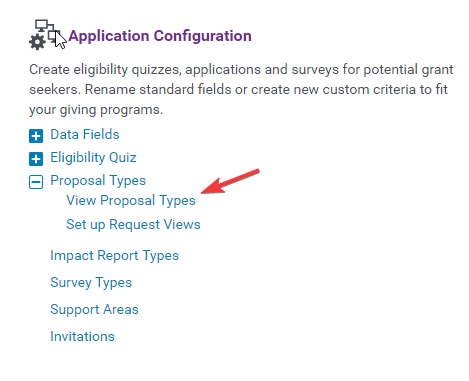
Admin > Application Configuration > Proposal Type > View Proposal Type
Enter the Sandbox environment and navigate to the Admin tab. Select "View Proposal Types" under the appropriate Application Configuration Proposal Type section.
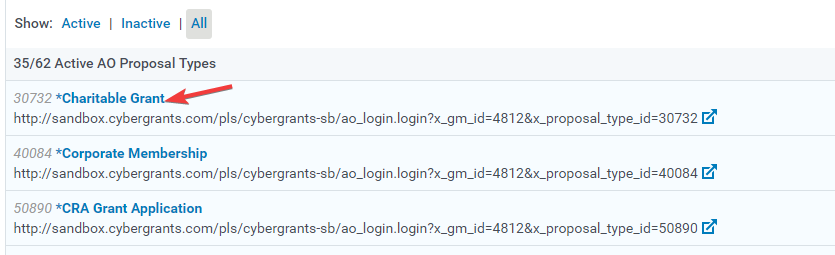
Click on the specific proposal type you need to update.
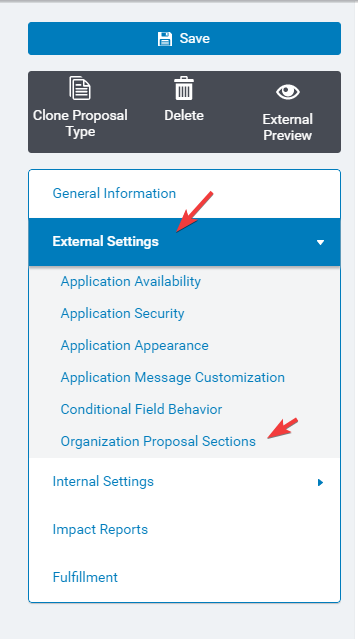
Step 2: Access the Organization Proposal Sections
Within the selected proposal type, locate and click on the "External Settings" tab, then choose the "Organization Proposal Sections" option.
Step 3: Edit the Relevant Section
Identify the section where the field you wish to mask is being used, and click the "Edit" button at the end of the corresponding row.
Step 4: Access the Advanced Settings
At the bottom of the screen, locate and click the "Advanced" button to reveal additional configuration options.
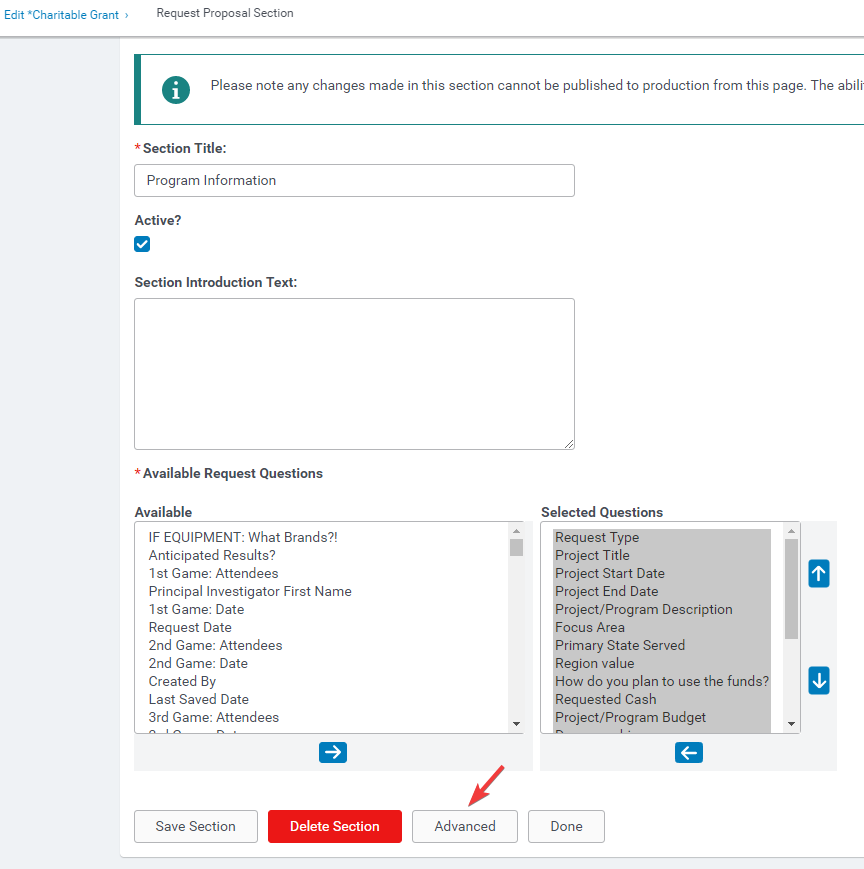
Step 5: Modify the Field Name
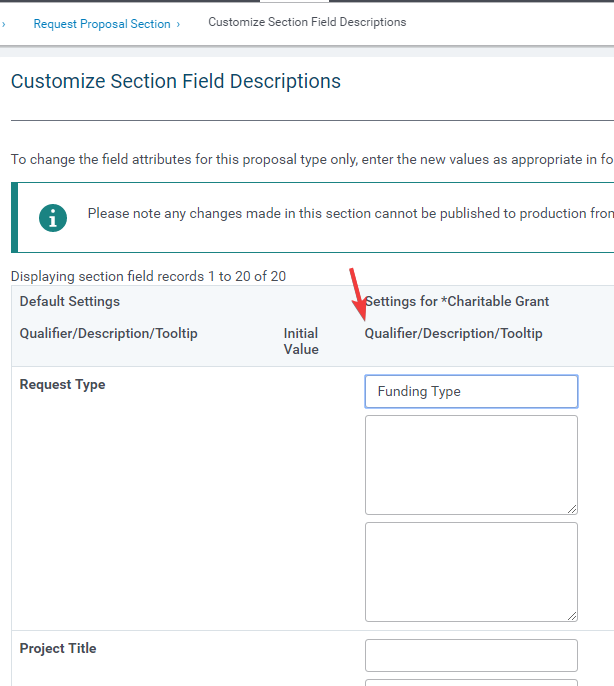
In the "Qualifier/Description/Tooltip" area, update the field name to the desired label. This will mask the original field name and display the new label in the proposal form.
Step 6: Save the Changes
Once you have made the necessary modifications, click the "Save" button and proceed with publishing the changes applied.
What else do you need help with?
Not what you're looking for? Navigate to Understanding Field Configuration.


