Field conditions allow administrators to display or hide certain fields within a proposal type based on the user's input on another field. This feature can greatly enhance the user experience by ensuring that users only see and respond to the questions that are relevant to their specific situation.
Proceed through the following instructions to add conditional logic to an application field.
Step 1: Locate the Application Field
Enter the Admin tab in the Sandbox environment, click to view Proposal types under Application Configuration, and select the appropriate proposal type from the list that includes the field you are looking to add conditional logic to.
Then, navigate to Proposal Sections and click "Edit" next to the applicable section. Scroll down and select "Advanced" at the bottom of the Proposal Section Edit page to view and update the field you want to be hidden or displayed based on another field's value.
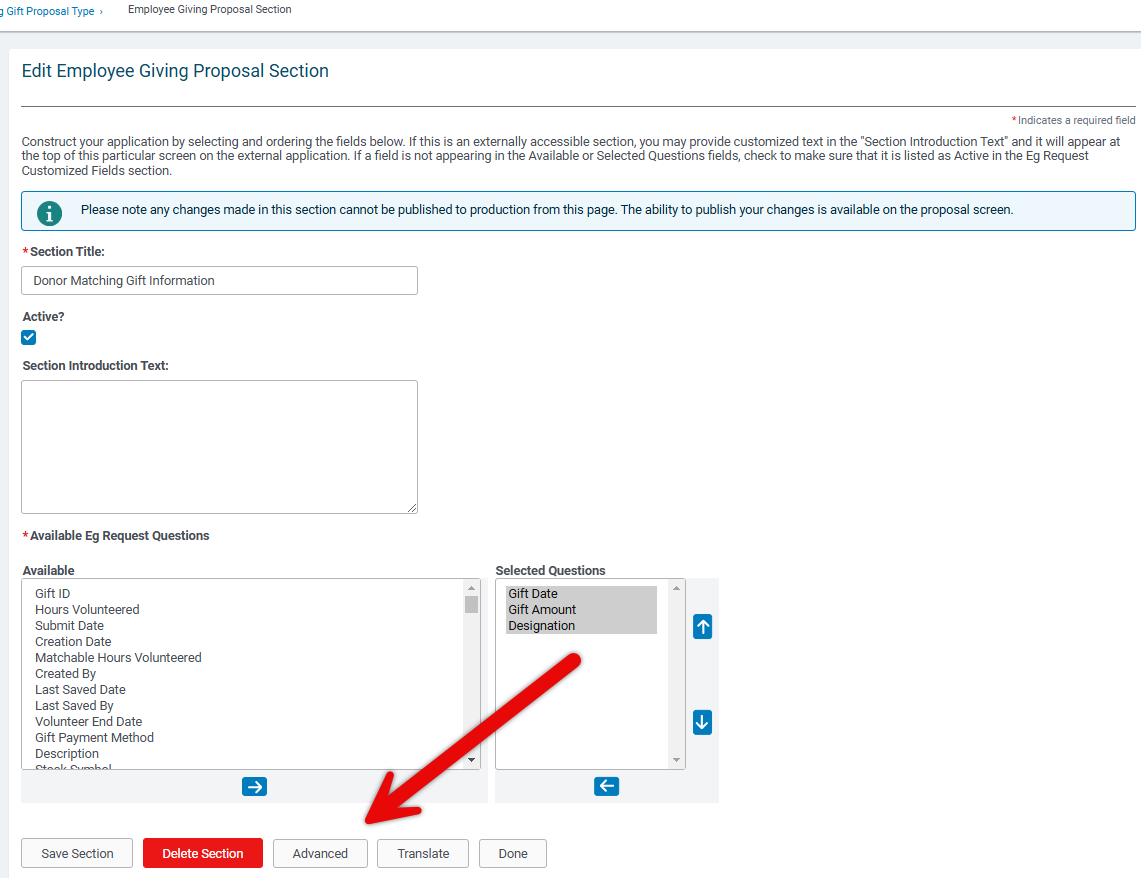
Step 2: Create a Condition
Click the "Create" link under the "Conditions?" column to begin setting up the conditional logic.
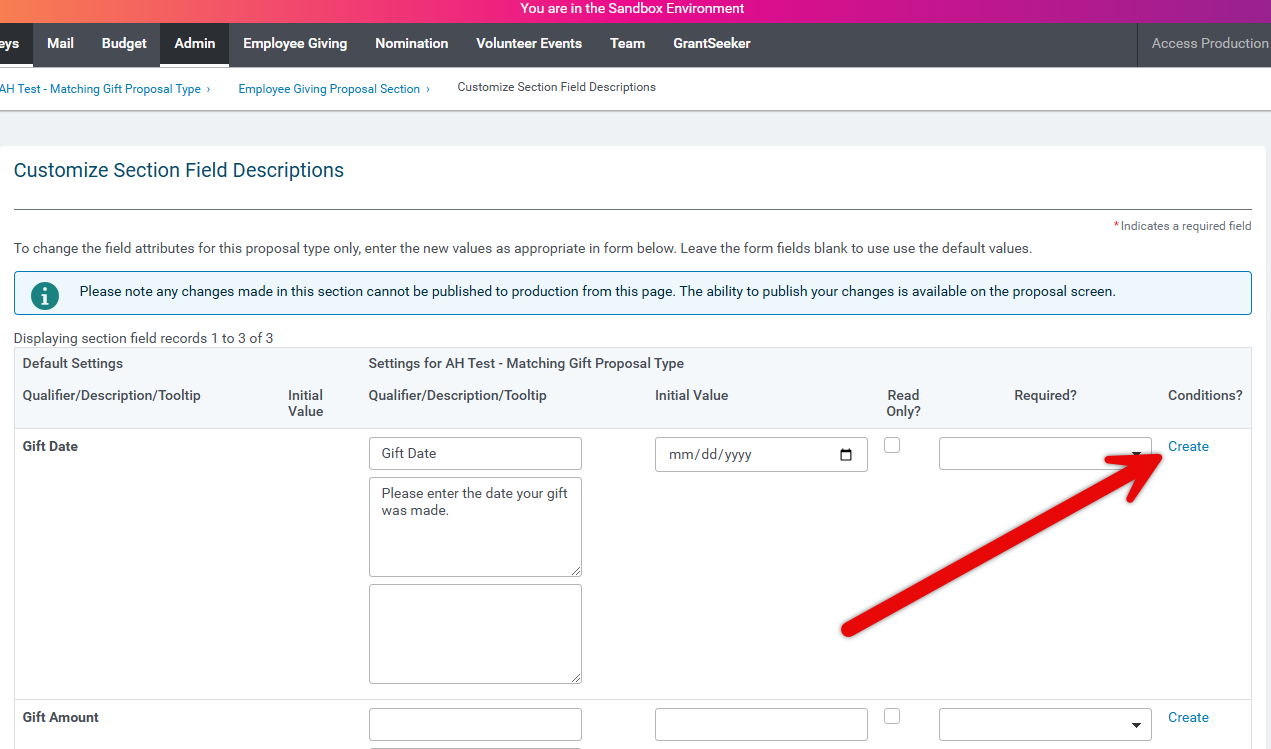
Step 3: Confirm the Field to be Changed
The "Field Name" will automatically populate with the field you selected from the previous screen.
Step 4: Choose a Conditional Behavior
Decide on the desired conditional behavior for the field. You can choose to display and require a response, display with conditional list values, or hide the question altogether.
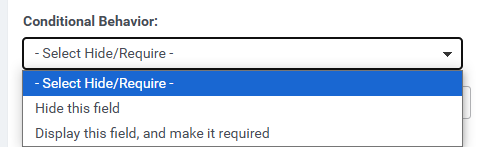
Step 5: Define the Conditional Rule
Select the name of the previous field/question that will serve as the basis for the conditional logic.
Then, choose an operator (e.g., includes, does not include, is blank, etc.) and define the criteria that will trigger the conditional behavior. When done, click "Save Condition."
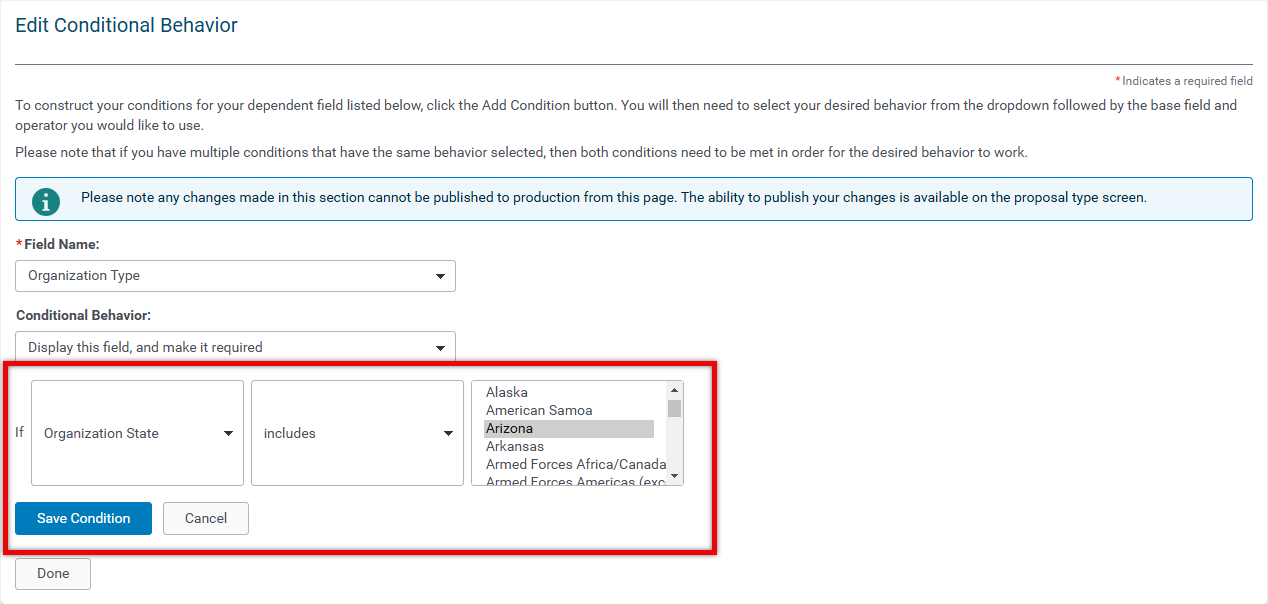
Step 6: Review and Publish
After saving, the conditional behavior will display on the screen. You can select the"Add Condition" link to apply more conditional rules as needed.
We recommend that you review all changes made to ensure the conditions are configured correctly before publishing on the proposal type screen. It is important to keep in mind that, when writing conditional logic, you must account for every scenario.
 Key Configuration Notes
- When creating a display rule, an opposite hide rule can be configured by adding a separate, new condition. All settings should be the same for the hide rule except for the conditional behavior and the operator.
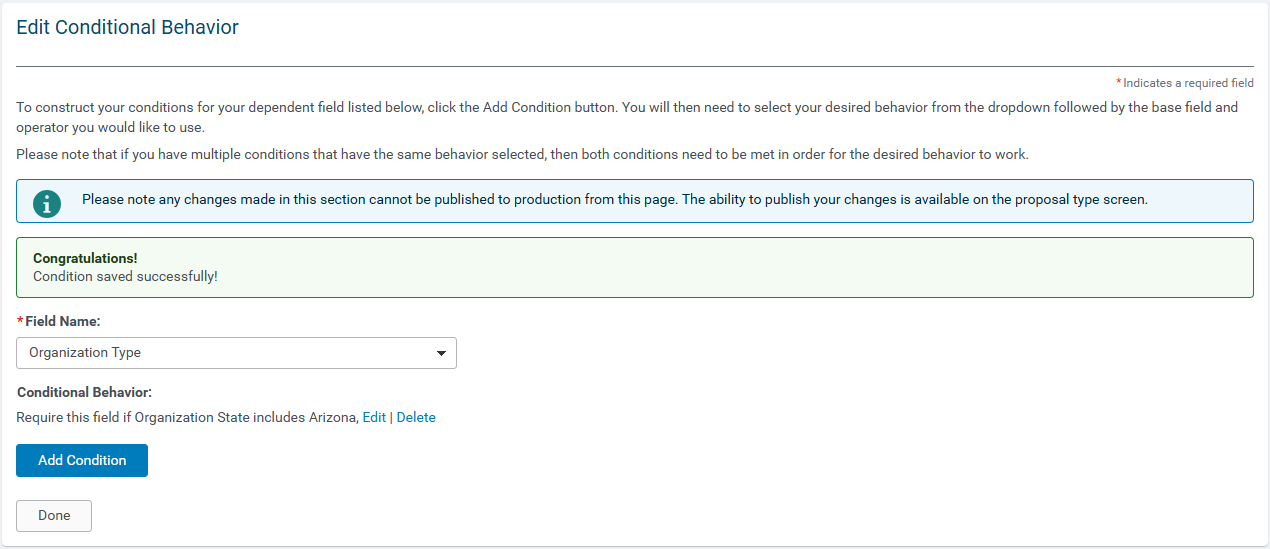
- For example, in the following image, the conditional behavior requires the Organization Type field when the organization state of Arizona is selected.
- If you want to conceal the field when a state other than Arizona is selected, add another condition to hide this field and the operator to not include Arizona to ensure that the field displays ONLY when "Arizona" is selected, excluding all other states from the drop-down list.
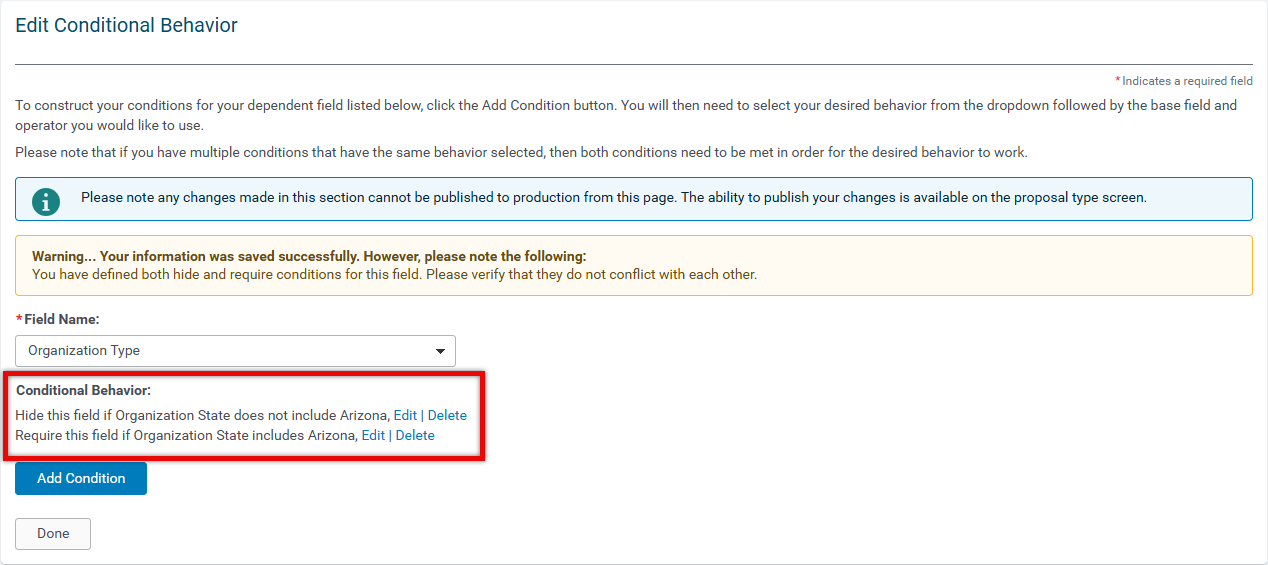
- For the field to display when no "organization state" selection has been made yet, and only be hidden when a state other than Arizona is selected, choose the operator "includes," and select every list value other than "Arizona."
- Hiding a field that was previously selectable will cause any data that is in there to clear if the completed request is saved. This will also affect undisplayed conditional list values.
- Ensure that all list values are either made inactive or are displayed in one or more of your conditional statements.
- Only current values available in the configuration can be selected if a base field value is changed, therefore, when a user changes a base field that has a dependent value configured, they will receive an alert notifying them of the unsupported values that have been cleared.
- If the base field is required, this prevents requests from saving with an unsupported value.
What else do you need help with?
Not what you're looking for? Navigate to Understanding Field Configuration.


