CyberGrants' optional field format validation allows Administrators to make sure users are entering valid phone numbers, emails, or positive integers, and to enforce email domain rules against a configured list of corporate domains.
All interfaces (Organization portals, Internal Administration, and Employee portals) will alert a user if they have input a value that does not conform to the configured validation.
To learn more about and access this feature, proceed through the steps below.
Step 1: Choose a Custom Data Field
To apply a Format Validation rule to a custom number, currency, or text field, navigate to the Sandbox environment, access the Admin tab, and select the Data Field Area under Application Configuration that includes the custom data field you want to update.
Admin > Application Configuration > Data Fields > [Area] > [Any number, currency, or text custom fields]
Some of the available supported data field areas include the following:
- Organization
- Request
- Contact
- Employee Giving
- Donor Profile
Step 2: Review Custom Field Type Validation Rules
The following are the Validation Rules for each of the supported Field Types:
Supported Field Type
|
Format Validation Rules
|
| Number Field Type Validation Rules: |
- The number must be positive, it allows zero and +, but it excludes decimals (+123).
- The number must be positive, it allows +, but it excludes decimals and zero (123).
|
| Currency Field Type: |
- The currency must be positive, it can include 0, up to 2 decimals, and a currency symbol ($€£¥).
- The currency must be positive, it can include up to 2 decimals, currency symbol ($€£¥), and zero is excluded ($123).
|
| Text Field Type Validation Rules: |
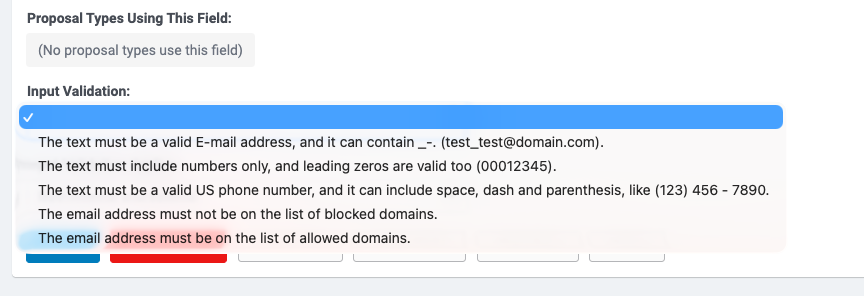
- The text must be a valid E-mail address, and it can contain _-. (test_test@domain.com).
- The text must include numbers only, and leading zeros are valid too (00012345).
- The text must be a valid US phone number, and it can include space, dash, and parenthesis, like (123) 456 - 7890
- The email address must not be on the list of blocked domains (checks the entered email address against the configured Corporate Domains list and prevents saving if the domain is on that list).
- The email address must be on the list of allowed domains (checks the entered email address against the configured Corporate Domains list and prevents saving unless the domain is on that list).
|
Step 3: Apply Validation Rules
Select "Edit" next to the custom data field and scroll to the bottom of the following page to access "Input Validation." Use the dropdown menu to select one of the available validation rules.
The “Input Validation Applies” dropdown controls indicate whether any validation rule is enforced for: Both internal and external, External only, or Internal only.
When prepared, save and publish the change.
- The corporate domain email validation options are not available for worksheet-type fields.
- The Corporate Domains list is configured separately under Admin > User Management > Configure Registration Rules > Corporate Domains. Click here to learn about managing that list to block Grantseeker registrations from corporate email domains.
What else do you need help with?
Not what you're looking for? Navigate to Understanding Field Configuration.


