Metric Fields are used to record and monitor impact and quantifiable grant-related goals. By leveraging these fields, administrators can track progress against their established objectives.
Key Considerations
Below are some key points to consider when configuring metric fields:
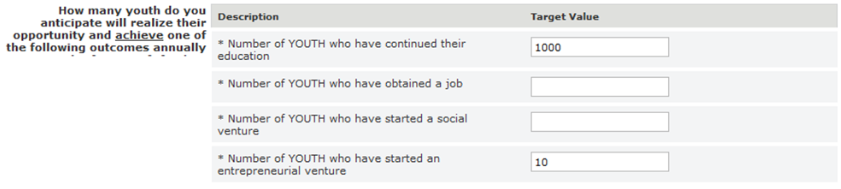
- Metric list-item requiredness is enforced by making sure at least one list item has been completed, not all are required.
- Conditional field logic doesn't apply to individual list items, only to the entire metric field.
- Not all field types are available for use in a metric field.
- Individual metrics can be pre-defined or organization-created.
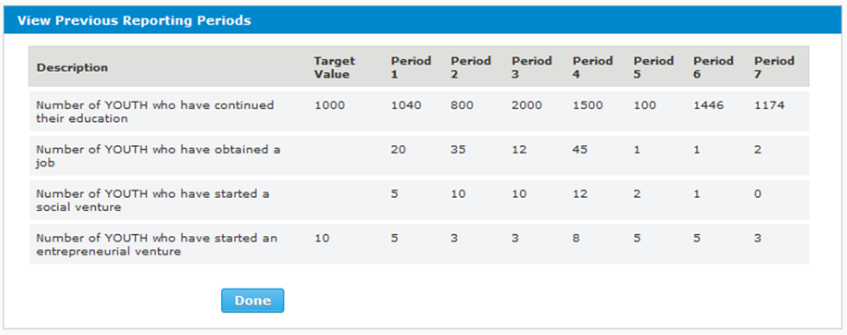
- Administrators can view previous reporting periods.
- The feature is limited to a maximum of 10 reporting periods.

Proceed through the following steps to learn about configuring metrics in a data field.
Step 1 Access a Data Field
Navigate to the CyberGrants platform and enter the Sandbox environment. Select the Admin tab and choose a Data Field location.
Then, select "Edit" next to an existing Metric Field or click the link at the bottom of the page to create a "New Field" using "Metric List" as the data field type.
Step 2: Create Metrics
Scroll down to the bottom of the data field's page and select the "Create/Edit Metrics" link. When creating metrics within the data field, the following details are included for each metric:
- Metric Name (required)
- Description
- Field Type (required)
- Indicate whether this metric field should be required by default.
- Ensure the metric is set to "Active" status.
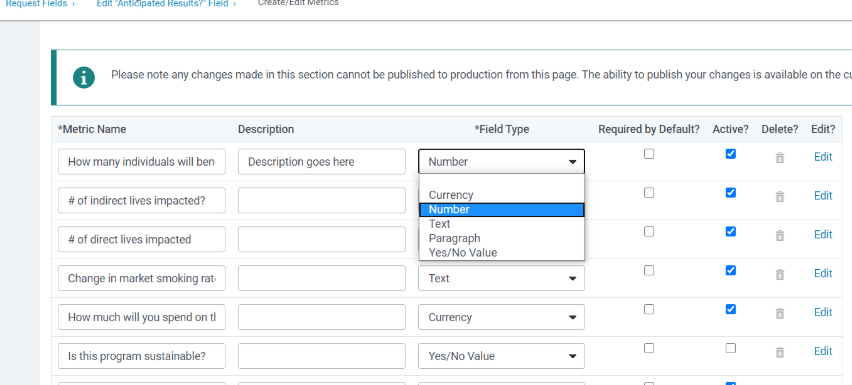
Repeat this step to add as many additional list values as needed.
- Click "Save." When prepared, the ability to publish changes to a metric is available on the custom field screen.
Step 3: Edit Metrics
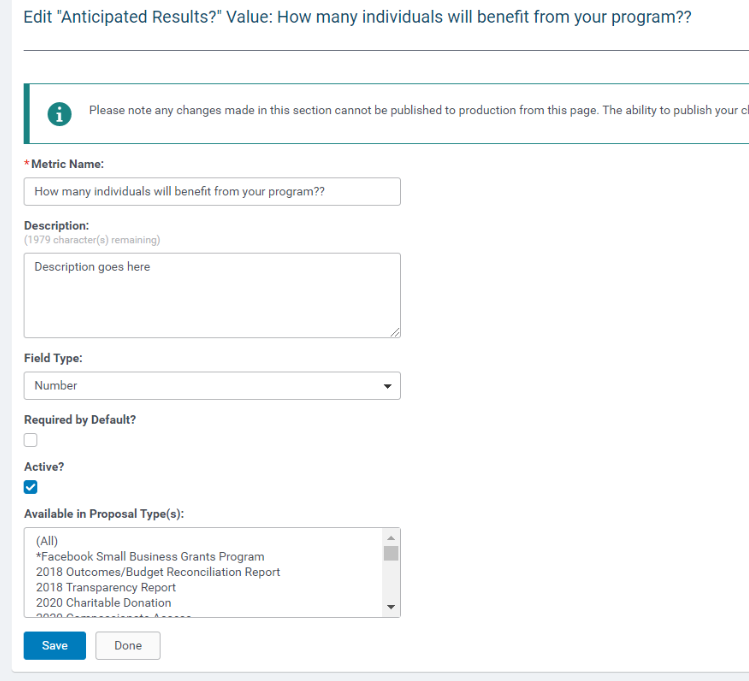
Click "Edit" next to a Metric in the list to revise its details including the following:
- Metric Name
- Description
- Field type
- Required/Not required by default
- Active Status
- Proposal type(s) the field is available in
Once all updates are completed - Click "Save." Then, proceed with publishing the changes on the custom field screen.
What else do you need help with?
Not what you're looking for? Navigate to Understanding Field Configuration.


