Add a Filter to a Measure in an Insights Explore Overview
The Insights platform provides Analysts the ability to apply filters to measures, which allows them to limit the data displayed in an Insights Explore. This can be particularly useful when focusing on specific subsets of your program's data, such as donors or organizations from certain states. Filtering measures can provide valuable information and assist you in making more informed decisions.
Insights Analysts can create a custom measure that copies an existing, standard measure but adds a filter condition, or they can add a custom filter directly to a custom measure when creating or editing it. Regardless of the approach, the steps for entering the filter details remain the same and are further outlined in the articles below.
Feature Availability:
Insights Explores are accessible only to Insights Analysts. Administrators can manage Insights permissions for their program's internal users through the Users section in the Insights platform. Click Here to learn more about the Insights Self-Service User Management Portal.
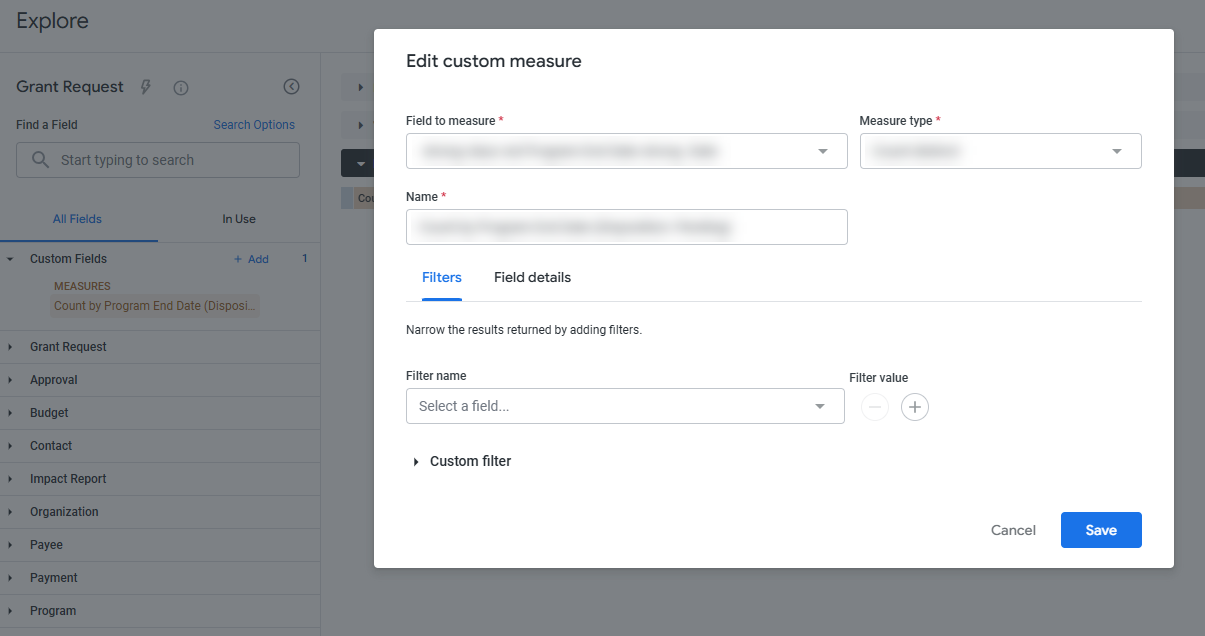
Please review the following articles to learn more about adding a filter to a measure in an Insights Explore.
What do you need help with?
Additional Resources
Not what you're looking for? Navigate to Understanding Insights Custom Fields


