Insights Analysts can leverage the Custom Fields ellipses menu to manage custom dimensions and measures in an Explore, providing greater flexibility to meet their unique program data analysis needs.
- NOTE: To access this feature, your Insights Access Level permission must be set to the Analyst role. Program administrators can manage Insights permissions for internal users through the Users section in the Insights platform. Click Here to learn more about the Insights Self-Service User Management Portal.
Proceed through the following steps to, efficiently, utilize the Custom Fields ellipses menu.
Step 1: Access Insights and Choose an Explore
Log into CyberGrants and navigate to the Insights platform.

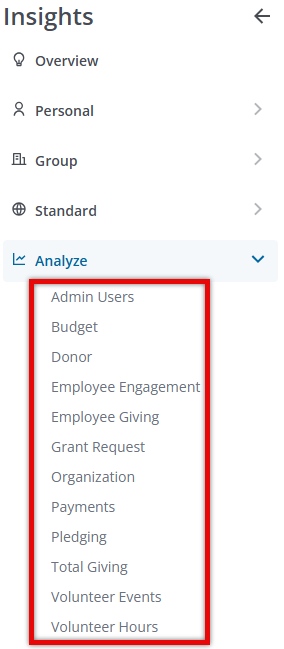
Then, select the desired Explore to begin your analysis.
Step 2: Expand the Custom Fields Section
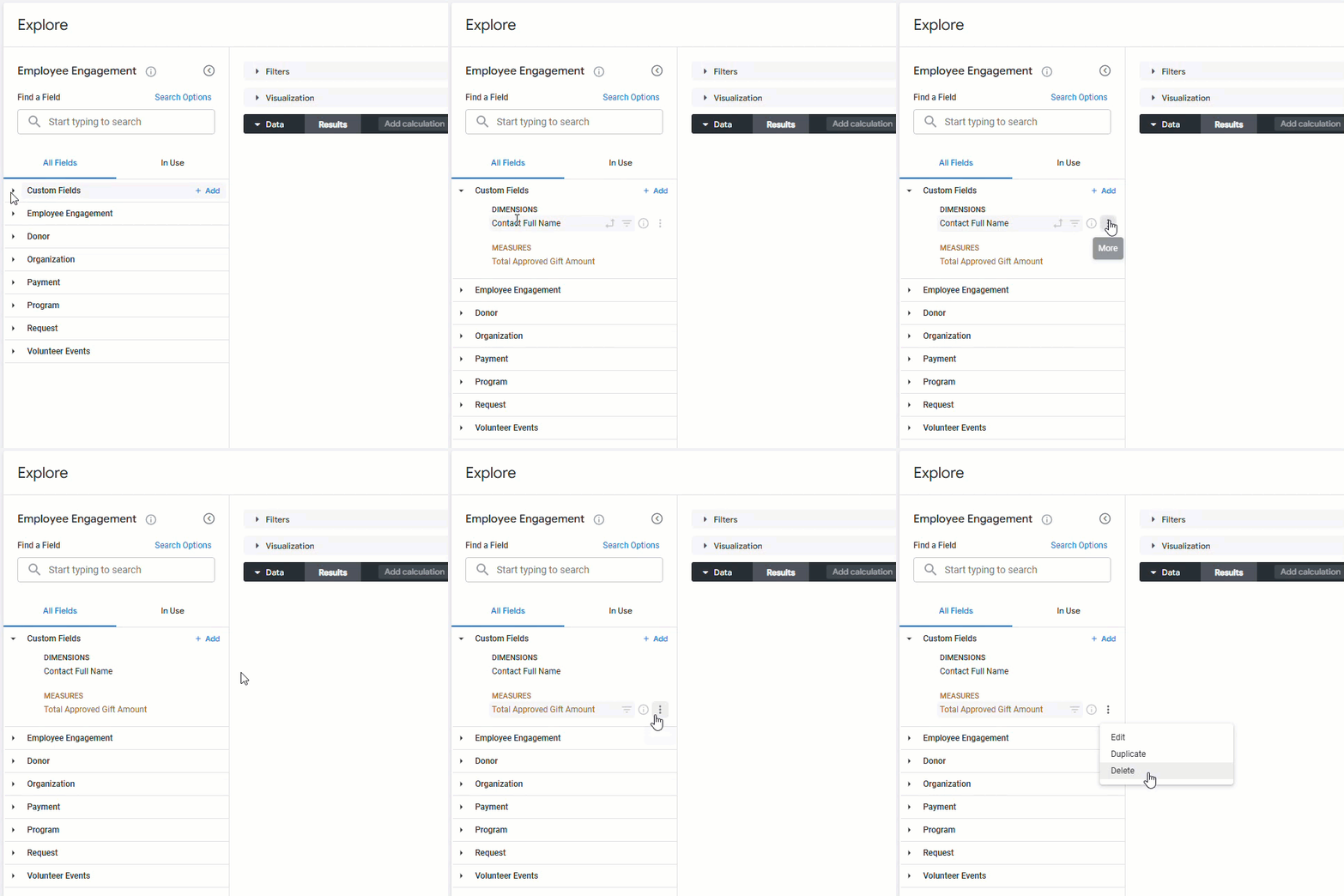
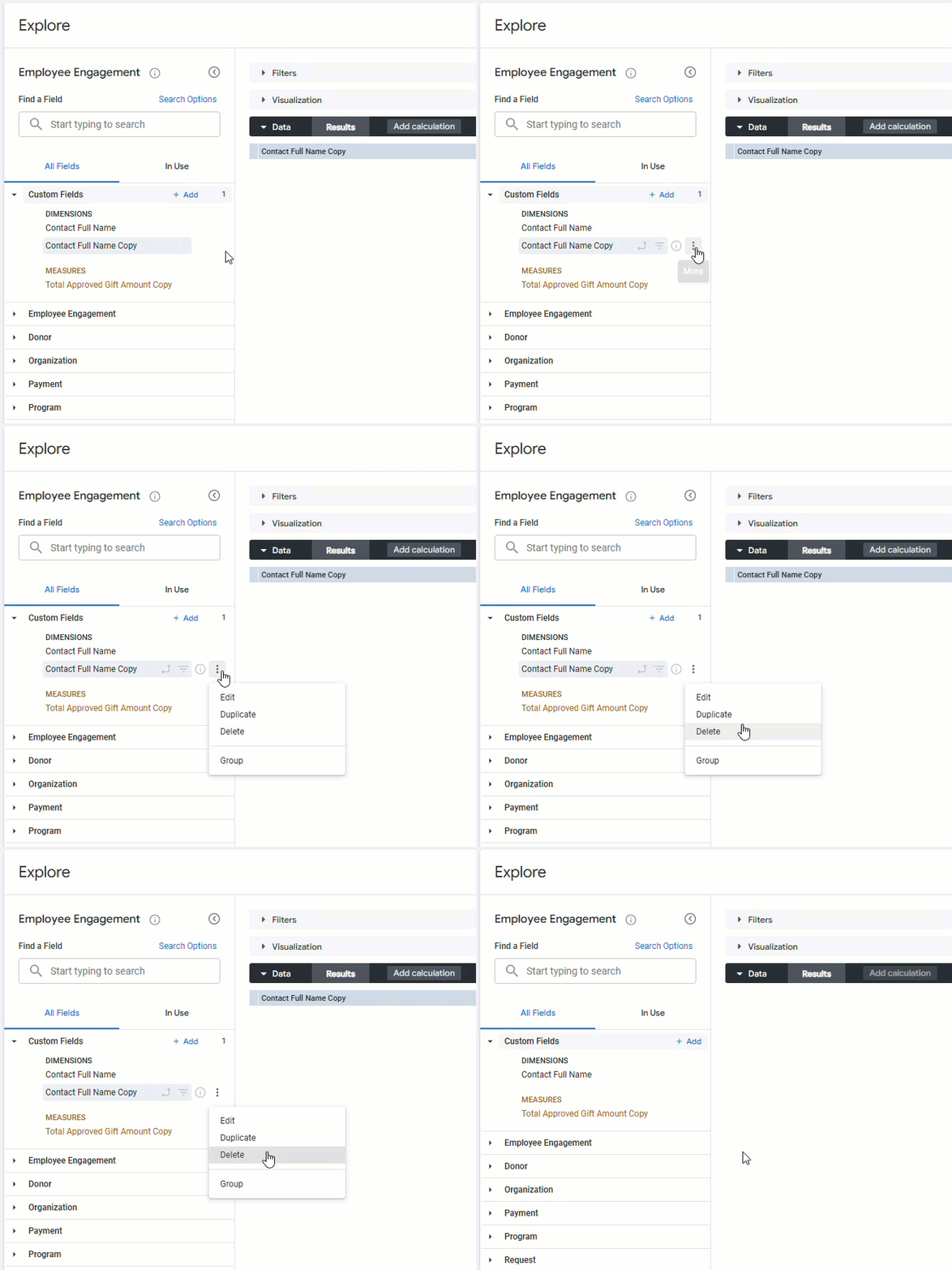
To view the vertical ellipsis menu for an existing custom field, open the "Custom Fields" section in the left field picker and hover over the field name.
Step 3: Edit a Custom Field
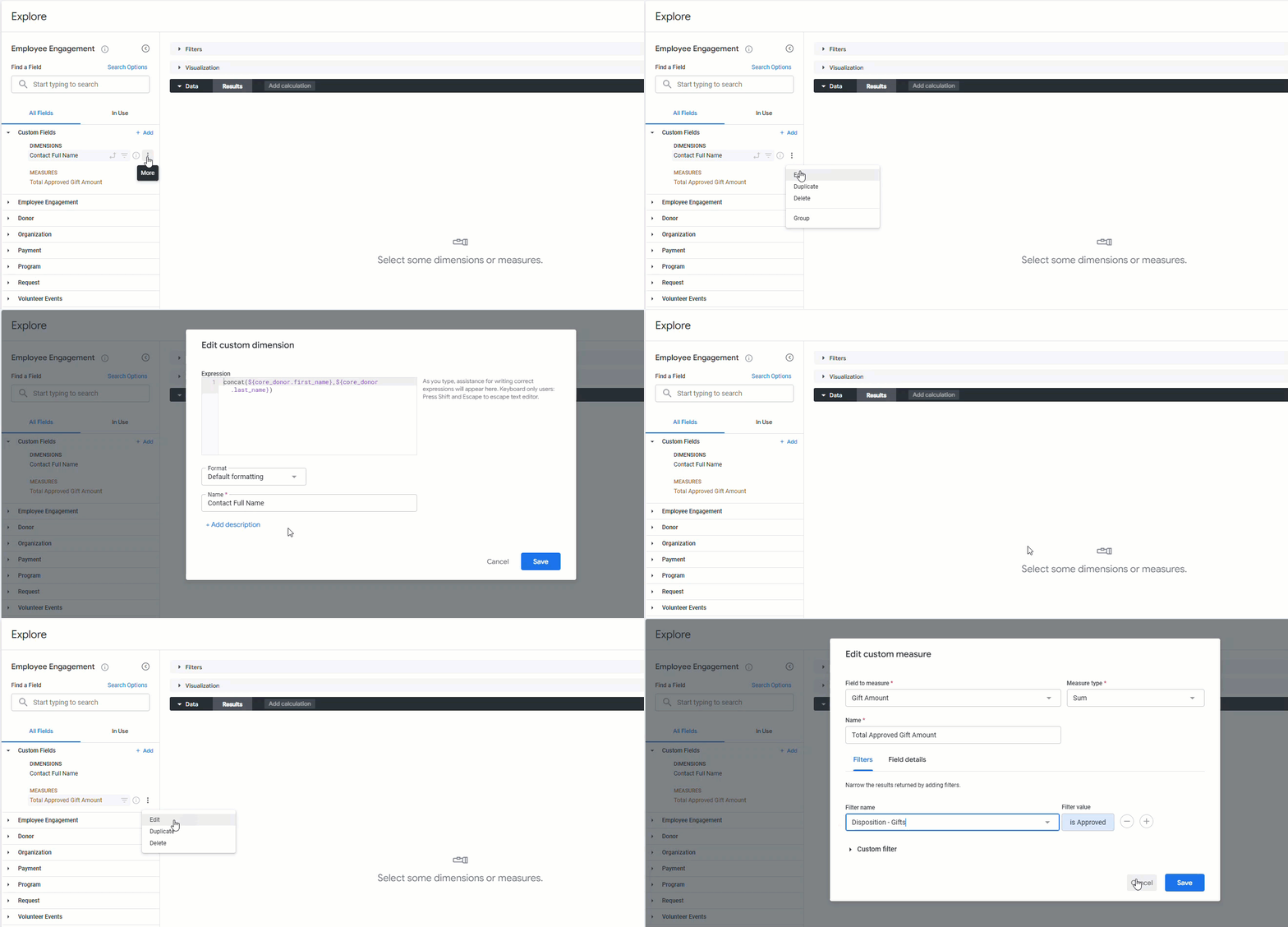
The Edit option allows Analysts to modify the details and configuration of the existing custom field whether it is a dimension or measure field.
Step 4: Duplicate a Custom Field
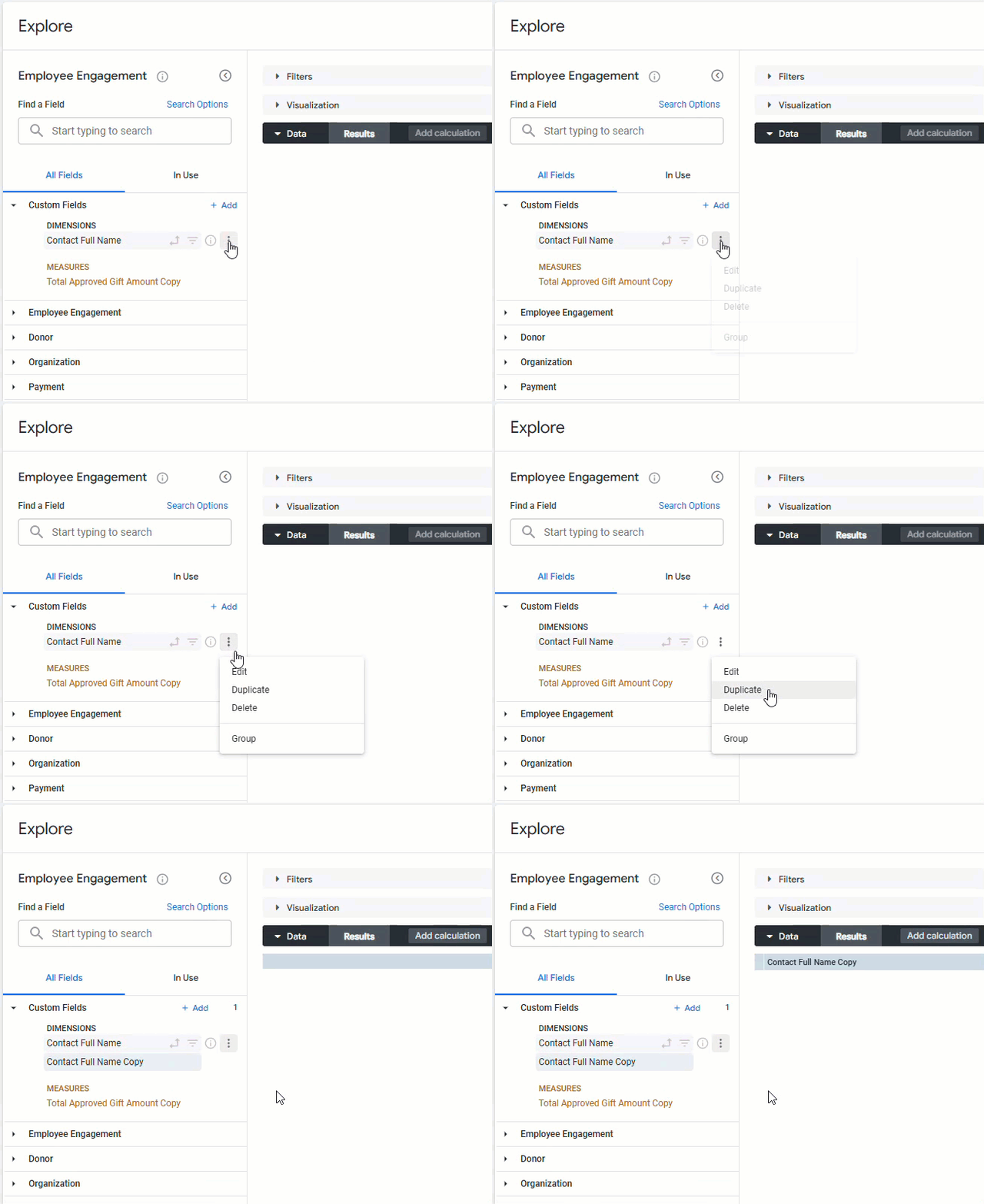
The Duplicate functionality empowers users to quickly generate a copy of the selected custom field. The duplicated field will be positioned directly beneath the original, inheriting the name of the source field with "Copy" added at the end.
Step 5: Delete a Custom Field
When a user elects to delete a custom field, it will disappear from the Explore, but will not be removed from any Looks/Reports or dashboard tiles that are currently using that field. Additionally, any users accessing the Explore via a URL that previously included the deleted custom field will still have access to that field.
What else do you need help with?
Not what you're looking for? Navigate to Understanding Insights Custom Fields


