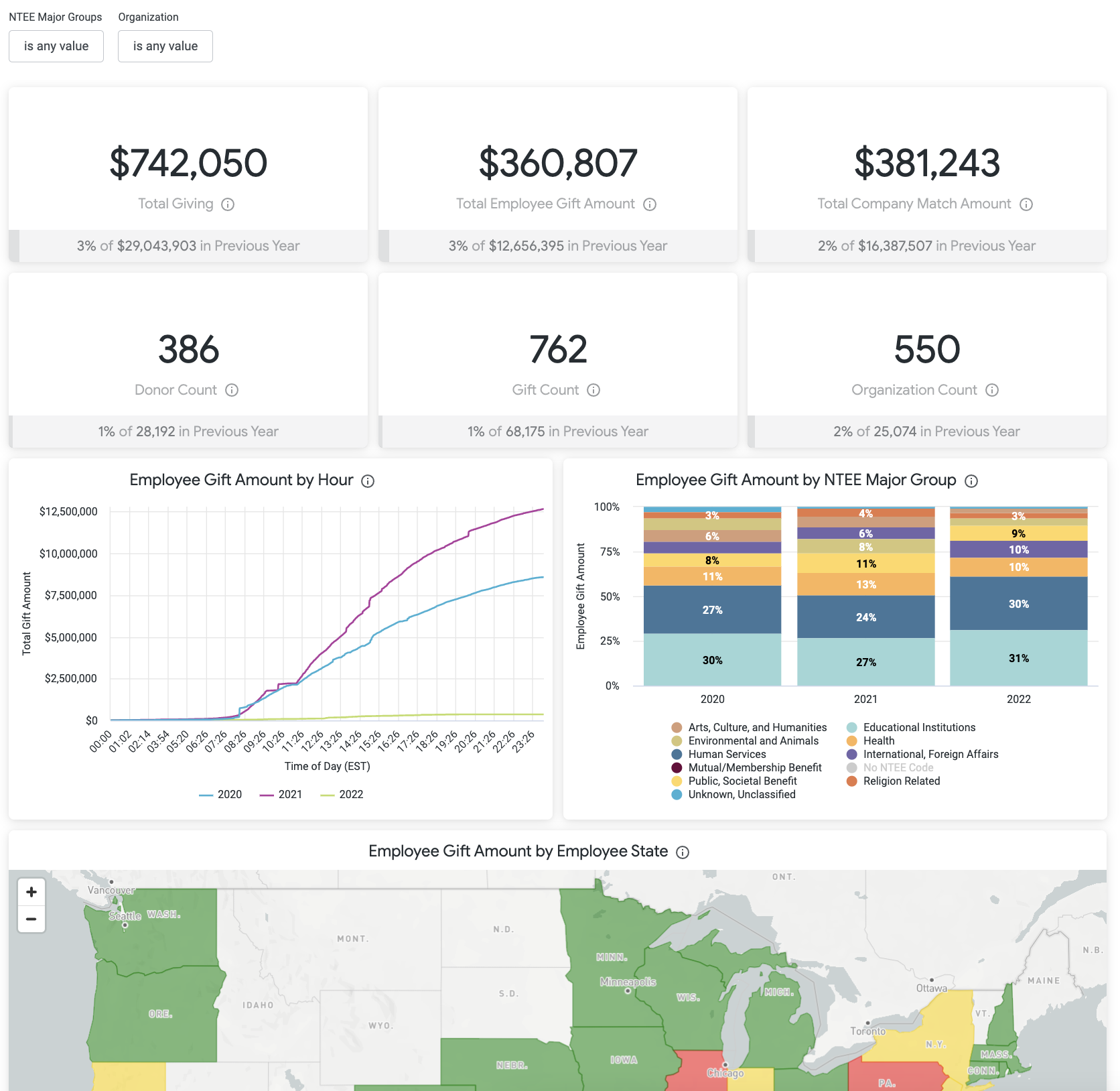
The Giving Tuesday Tracker standard dashboard provides program administrators with near real-time insights into Giving Tuesday employee giving metrics, including Gift Amount, Gift Count, Donor Count, Organization Count, and activity by NTEE or Employee State.
Target Audience: Program Administrators & Program Coordinators
Proceed as follows to further explore the Giving Tuesday Tracker standard dashboard and its features.
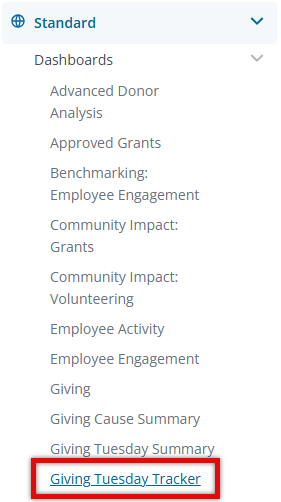
Step 1: Access the Dashboard
Navigate to the Insights platform and choose Giving Tuesday Tracker from the list of Standard Dashboards in the left-side navigation panel.
Step 2: Explore the Dashboard Reports
The following is a list of reports included in the Giving Tuesday Tracker standard dashboard.
Report Name
|
Description
|
| Total Giving | Sum of all gifts and matches created on Giving Tuesday not in disposition Canceled or Rejected. |
| Total Employee Gift Amount | Sum of all employee gifts created on Giving Tuesday not in disposition Canceled or Rejected. |
| Total Company Match Amount | Sum of all company matches created on Giving Tuesday not in disposition Canceled or Rejected. |
| Donor Count | Unique Giving Tuesday donor count (both active/inactive) not in disposition Canceled or Rejected. |
| Gift Count | Unique count of employee gifts created on Giving Tuesday not in disposition Canceled or Rejected. |
| Organization Count | Unique count of Non-Profits with which employees engaged on Giving Tuesday. These do not include any records in disposition Canceled or Rejected. |
| Employee Gift Amount by Hour | Sum of employee gift amounts created on Giving Tuesday by hour (not in disposition Canceled or Rejected) compared to previous years. |
| Employee Gift Amount by NTEE Major Group | Percentage of total employee gift amount created on Giving Tuesday (not in disposition Canceled or Rejected) broken down by NTEE Major Group and compared to previous years. |
| Employee Gift Amount by Employee State | Sum of employee gifts created on Giving Tuesday (not in disposition Canceled or Rejected) by Donor State. |
Step 3: Use the Dashboard Filters
Insights users can utilize the following filters to adjust their view of the data displayed across all tiles within this dashboard.
- NTEE Major Groups
- Organization Name
What else do you need help with?
Not what you're looking for? Navigate to Insights Standard Dashboards Overview


